The ChatGPT image generator lets you create and edit pictures just by describing them in a normal chat. You type what you want, ChatGPT draws it, and you refine the result with follow-up messages or by highlighting the part you want changed.
It works on every plan, including Free, but the paid tiers give you more images and better quality. Below you will find how to get started, what each plan allows, prompt tips that actually help, and what you can legally do with the images.
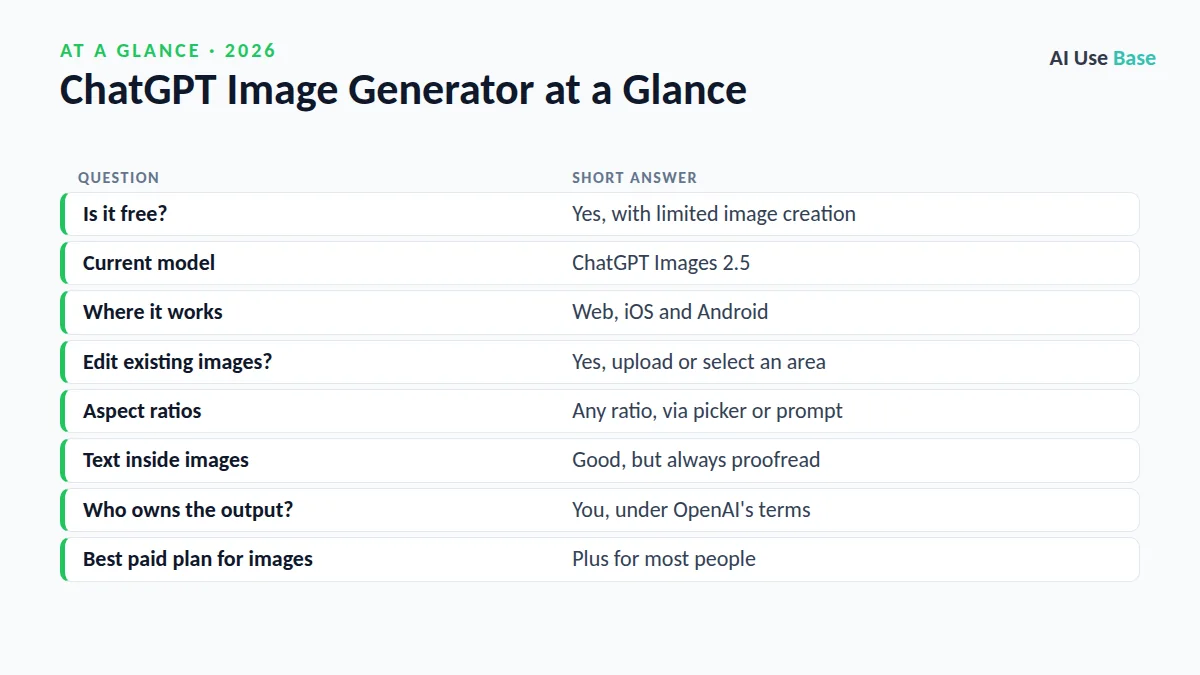
ChatGPT Image Generator at a Glance
| Question | Short answer |
|---|---|
| Is it free? | Yes, with limited image creation |
| Current model | ChatGPT Images 2.5 |
| Where it works | Web, iOS and Android |
| Edit existing images? | Yes, upload or select an area |
| Aspect ratios | Any ratio, via picker or prompt |
| Text inside images | Good, but always proofread |
| Who owns the output? | You, under OpenAI’s terms |
| Best paid plan for images | Plus for most people |
What Is the ChatGPT Image Generator?
Image creation is built straight into ChatGPT, so there is no separate app to open. According to the OpenAI Images in ChatGPT help page, the current model is ChatGPT Images 2.5, which offers sharper details, more precise editing and faster generation. The old DALL·E GPT has been retired, and custom GPTs with image generation now use the new model.
Because the ChatGPT image generator lives inside a conversation, it remembers what you asked earlier. That makes it easy to say “same scene, but at night” instead of rewriting the whole prompt. If you are new to the chat itself, start with our guide on how to use ChatGPT.
How to Get Started with the ChatGPT Image Generator
- Open ChatGPT on the web or in the iOS or Android app and sign in.
- Start a new chat and describe the image you want in plain words.
- Optionally pick an aspect ratio (square, portrait, wide) or mention it in your prompt.
- Wait for the image to render; complex requests can take a minute or more.
- Ask for changes in follow-up messages, or open the image and use the Select tool to edit one area.
- Download, copy or share the result. Every image is also saved in the Images library in the sidebar.
Key Features and How to Use Them
Editing with the Select tool
Click an image to open the editor, choose Select, brush over the area you want to change and describe the edit, such as “replace the mug with a glass of orange juice.” OpenAI notes that highlights are not always precise, so small changes may spill outside the selected area. Undo and Redo let you step back if that happens.
Uploading your own photos
You can upload a photo and ask ChatGPT to restyle it, change the background or combine it with another image. This is handy for product mockups and social graphics. Only upload photos you have the right to use, especially pictures of other people.
Text in images
The ChatGPT image generator handles words on posters, menus and labels far better than older image models. Put the exact wording in quotes, keep it short, and always proofread the result, because a single wrong letter can still slip in.
Images with thinking
On Plus, Pro and Business, ChatGPT can reason before drawing. This helps with infographics, diagrams and multi-panel layouts where the placement of elements matters.
Practical Uses with Example Prompts
- Social media posts:
Create a square Instagram graphic with the headline "Spring Sale 30% Off" in bold white letters over a pastel floral background - Blog headers:
Wide 16:9 illustration of a student studying at night with a laptop, flat vector style, calm blue tones - Product mockups:
Place this uploaded logo on a white ceramic coffee mug on a wooden table, soft morning light - Classroom visuals:
Simple labeled diagram of the water cycle for 10-year-olds, bright colors, large readable labels - Event flyers:
Portrait flyer for a community book swap on Saturday, May 9, 10 AM, at Oak Street Library, friendly hand-drawn style - Photo edits:
Remove the people in the background of this photo and keep everything else the same - Presentation icons:
Set of six matching line icons for budget, team, timeline, risks, goals and results on a transparent-looking white background - Storyboards:
Four-panel comic strip of a cat discovering a robot vacuum, consistent character design across panels
For more design-focused options beyond the ChatGPT image generator, see our roundup of the best AI image generators.
ChatGPT Image Generator Limits by Plan
OpenAI does not publish fixed daily image counts on its pricing page. Instead, it describes each tier’s image access, and limits can change with demand. Prices last checked October 2026.
| Plan | US price | Image creation |
|---|---|---|
| Free | $0 | Limited image creation |
| Go | $8/month | More image creation |
| Plus | $20/month | More complex and accurate image creation, images with thinking |
| Pro | From $100/month (also $200 and $500 tiers) | Unlimited and faster image creation, subject to abuse guardrails |
| Business | $25/user monthly, $20/user billed annually | Workspace access, images with thinking |
For occasional use that is usually fine; if you design graphics every day, Plus is the sensible step up.
Tips for Better ChatGPT Image Generator Results
- Describe the subject, setting, style and mood. “A golden retriever on a beach at sunset, watercolor style, warm and relaxed” beats “a dog.”
- State the format. Mention the aspect ratio and where the image will be used, such as a YouTube thumbnail or a print poster.
- Change one thing at a time. Small, specific follow-ups keep the rest of the image stable.
- Quote any text. Put headlines in quotation marks and ask for a clean, legible font.
- Reuse what works. Save strong prompts so you can recreate a consistent brand look later.
Usage Rights and Ownership
Under OpenAI’s terms of use, you own the output you create, to the extent the law allows, and OpenAI assigns any rights it has in that output to you. That means you can generally use images from the ChatGPT image generator in blog posts, ads and products.
There are caveats. Similar images may be generated for other users, copyright protection for AI-only images is limited in many countries, and you must still follow OpenAI’s usage policies. Avoid creating images that copy trademarks, real people’s likeness or another artist’s protected work.
Limitations to Keep in Mind
The ChatGPT image generator is capable, but it is not flawless. Watch for these issues:
- Generation can take a minute or longer for detailed requests.
- Region edits are not pixel-perfect and may change nearby areas.
- Small text, hands and complex charts can still contain errors.
- Some requests are blocked by OpenAI’s safety rules and usage policies.
- Deleting an image from your library means deleting the conversation it came from.
If you only need quick, free visuals, compare options in our list of best free AI tools or the wider best AI tools guide.
Frequently Asked Questions
Is the ChatGPT image generator free?
Yes. Free users get limited image creation, while Go, Plus and Pro offer progressively more. OpenAI does not publish a fixed daily number, and limits can change with demand.
Can I use ChatGPT images commercially?
Generally yes. OpenAI’s terms say you own the output to the extent the law allows. You still need to avoid copying trademarks, real people’s likeness or protected artwork, and AI-only images may have limited copyright protection.
How do I edit an image in ChatGPT?
Click the image to open the editor, choose Select, highlight the area you want to change and describe the edit. You can also just describe the change in a follow-up message without selecting anything.
What model does ChatGPT use to create images?
ChatGPT currently uses ChatGPT Images 2.5, according to OpenAI’s help center. The older DALL-E GPT has been retired, and custom GPTs with image generation use the new model.
Why does ChatGPT get text in images wrong?
Text rendering has improved a lot, but long or small text can still contain mistakes. Keep wording short, put it in quotation marks and proofread before using the image.
Final Thoughts
The ChatGPT image generator is one of the easiest ways to turn an idea into a usable picture, mainly because you can talk your way to the result. Start on the Free plan, learn the prompt basics, and upgrade to Plus only if you keep running into limits or need more accurate, detailed images.
Treat every output as a draft: check text, details and rights before you publish, and you will get professional-looking visuals in minutes.