To learn how to use Canva AI, open Canva, click Canva AI in the left side navigation, describe what you want, and pick a content type such as Design, Image, Doc, Code or Video clip. Canva generates a first version you can refine in the chat or edit by hand, while tools like Magic Write, Magic Edit and Background Remover work right inside the editor.
Canva’s AI features, long marketed as Magic Studio, now center on the Canva AI assistant. This guide covers how to start, the main tools, practical prompts, the AI usage allowance on each plan, and whether Free or Pro fits your needs.
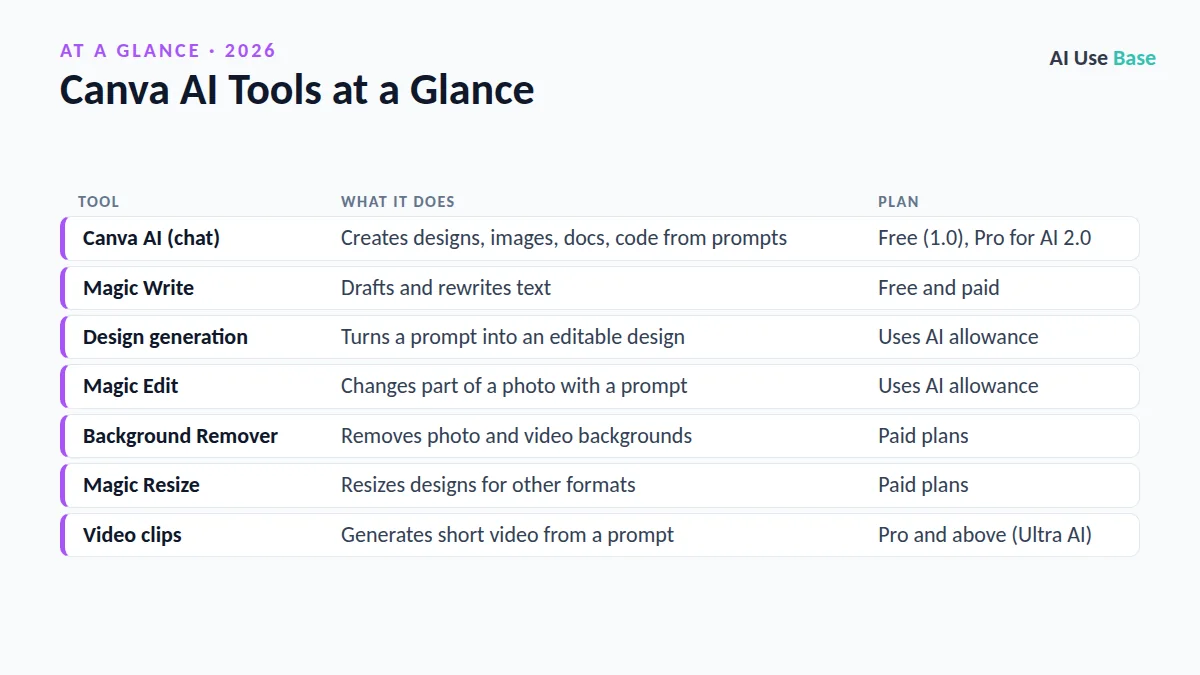
Canva AI Tools at a Glance
| Tool | What it does | Plan |
|---|---|---|
| Canva AI (chat) | Creates designs, images, docs, code from prompts | Free (1.0), Pro for AI 2.0 |
| Magic Write | Drafts and rewrites text | Free and paid |
| Design generation | Turns a prompt into an editable design | Uses AI allowance |
| Magic Edit | Changes part of a photo with a prompt | Uses AI allowance |
| Background Remover | Removes photo and video backgrounds | Paid plans |
| Magic Resize | Resizes designs for other formats | Paid plans |
| Video clips | Generates short video from a prompt | Pro and above (Ultra AI) |
What Is Canva AI?
Before you learn how to use Canva AI, it helps to know what it is. Canva AI is the AI assistant built into Canva, the online design platform. It started as a set of separate “Magic” tools and now works like a chat-based design partner that can create, edit and research for you.
In April 2026, Canva launched Canva AI 2.0, which adds conversational design, memory of your preferences, connectors to other apps, scheduled tasks and automatic use of your brand kit. According to Canva’s Canva AI help page, the 2.0 features are available on Pro, Teams, Business and Nonprofit plans, while Free and Education users get the earlier Canva AI features with limited monthly usage.
How to Use Canva AI: Getting Started
- Sign in to Canva. Use the web app at canva.com or the desktop or mobile app.
- Open Canva AI. Select Canva AI in the side navigation on the homepage, or click the Canva AI button in the top left of the editor.
- Describe your goal. Type or speak a prompt, such as “an Instagram post announcing our summer sale in bright colors.”
- Choose a content type. Pick Design, Image, Doc, Code or Video clip, then submit.
- Refine. Ask for changes in the chat, or open the result in the Canva editor and adjust text, images and layout by hand.
- Export or schedule. Download, share or publish the design when you are happy with it.
Key Features: How to Use Canva AI Tools
Magic Write
Writing is the simplest place to see how to use Canva AI. Magic Write drafts and rewrites text in Canva Docs and designs. Select a text box, open Magic Write, and ask it to shorten, expand, change tone or continue writing. It is handy for captions, slide text and first drafts of blog posts.
Design Generation (Formerly Magic Design)
For most people, how to use Canva AI comes down to generating designs. The prompt-to-design feature once branded Magic Design now runs through Canva AI’s “Generate a design” option. Describe the format, audience and style, and Canva builds an editable layout using its templates and, on paid plans, your brand kit.
Magic Edit
To use Magic Edit, select a photo, click Edit, then choose Magic Edit under Tools. Brush over an area, click an object or select the whole image, describe the change (for example, “replace the mug with a glass of lemonade”), and click Generate. Brush tightly around the area and avoid faces, hands and text for the best results.
Background Remover
Background removal shows how to use Canva AI for quick photo cleanup. Select a photo and choose BG Remover from the editor toolbar. It also works on whole folders and on videos under 10 minutes. Canva’s help center lists it as a paid-plan tool; for no-cost options, see our roundup of free AI background removers.
Video and Animation
Canva AI can generate short video clips from a prompt, turn images into video, and add motion with Magic Animate. Video generation sits in Canva’s highest AI tier, so it uses more of your allowance than text or image tools.
8 Practical Ways to Use Canva AI (With Prompts)
These examples show how to use Canva AI for common tasks. Replace the bracketed details.
- Social post:
Design an Instagram post for [business] promoting [offer], warm colors, bold headline. - Presentation:
Create a 10-slide pitch deck for [startup idea] with a clean, modern style. - Flyer:
Make a printable A4 flyer for a community [event] on [date]. - Product image:
Generate a photo of [product] on a marble kitchen counter in soft morning light. - Caption writing: In Magic Write,
Write 5 short captions for this post in a playful tone. - Photo fix: In Magic Edit, brush over the background and type
a sunny beach. - Interactive content: With Code selected,
Build a simple quiz about [topic] with 5 questions. - Short video:
Create a 5-second clip of coffee being poured in slow motion.
Marketers can find more ideas in our AI for marketing guide.
Canva Free vs Pro: Plans and AI Limits
Canva uses a shared monthly AI allowance split into Standard, Premium and Ultra tiers, explained on its AI access page. Prices come from the Canva pricing page in US dollars (prices last checked October 2026).
| Plan | Price | AI allowance |
|---|---|---|
| Free | $0 | Up to 20 Standard or Premium AI uses per month, no Ultra AI |
| Pro | $144/year for one person (free trial available) | Up to 200 Premium or 20 Ultra uses per month, plus resize, translate and background removal |
| Business | $250/year per person | Up to 400 Premium or 40 Ultra uses per person per month |
| Enterprise | Contact sales | Same as Business, plus admin and security controls |
These allowances are estimates for simple tasks; complex prompts use more. Free allowances reset on the first of each month, and paid plans reset on your billing date.
Tips on How to Use Canva AI Effectively
- Be specific. Include format, size, audience, colors and mood in one prompt.
- Set up a brand kit. On paid plans, Canva AI applies your fonts and colors automatically.
- Edit instead of regenerating. Small manual tweaks save your AI allowance.
- Check text in images. AI-generated text can contain typos.
- Respect rights. Avoid prompts that copy celebrities, logos or other brands.
Comparing options? Read Canva AI vs Microsoft Designer or browse our list of the best AI tools.
Limitations
Knowing how to use Canva AI well also means understanding its limits.
- Tight free allowance. Twenty AI uses a month goes quickly if you generate images or designs.
- Uneven results. Magic Edit can produce mismatched lighting or blurry patches.
- Generic layouts. AI designs can look template-like without your own edits.
- Feature changes. Canva renames and reorganizes AI tools often, so menus may move.
Frequently Asked Questions
Is Canva AI free?
Partly. Canva Free includes Canva AI and tools like Magic Write with up to 20 Standard or Premium AI uses per month. Canva AI 2.0, Ultra AI tools such as video clips, and Background Remover require a paid plan.
Where is Canva AI in Canva?
The first step in how to use Canva AI is finding it. Select Canva AI in the side navigation on the Canva homepage, or click the Canva AI button in the top left of the editor. It opens a chat where you can describe a design, image, doc, code or video clip.
What happened to Canva Magic Studio?
Canva still uses many Magic tool names, such as Magic Write, Magic Edit and Magic Resize, but its AI features now center on the Canva AI assistant. Design generation, once called Magic Design, now runs through Canva AI.
How many AI uses do you get with Canva Pro?
Canva Pro includes up to 200 Premium AI uses or up to 20 Ultra AI uses per month, shared across tools. Complex prompts can use more, and the allowance resets on your billing date.
Can Canva AI make videos?
Yes. Canva AI can create short video clips from a prompt and turn images into video, and Magic Animate adds motion to designs. Video generation is in the Ultra AI tier, so it is limited even on paid plans.
Final Thoughts
Once you know how to use Canva AI, you can go from a one-line idea to a finished post, deck or video in minutes. Start on the Free plan to learn the Canva AI chat and Magic Write, and watch how quickly you use your monthly allowance.
If you design every week, need background removal and Magic Resize, or want Canva AI 2.0, the Pro plan is worth trying with the free trial first.