Want to learn how to use Gemini the right way? Google’s AI assistant can now write, research, analyze files, create images, talk with you in real time and even handle tasks for you. Most people only use a small part of it. This guide shows you how to use Gemini step by step, from your first prompt to the features that save the most time.
You will learn how to set it up on your computer and phone, which model to pick, what the free plan includes, and practical prompts you can copy today.
What Is Gemini?
Gemini is Google’s AI assistant. It works like ChatGPT: you type or speak a request and it answers, writes, explains or creates something for you. What makes Gemini different is how deeply it connects to Google’s products, including Gmail, Google Docs, Drive, Chrome, YouTube and Android.
Before you learn how to use Gemini, pick where you want to use it: in a web browser, in the mobile app, in the desktop app for Windows and Mac, and inside Google Workspace apps.
Is Gemini Free? Plans Explained
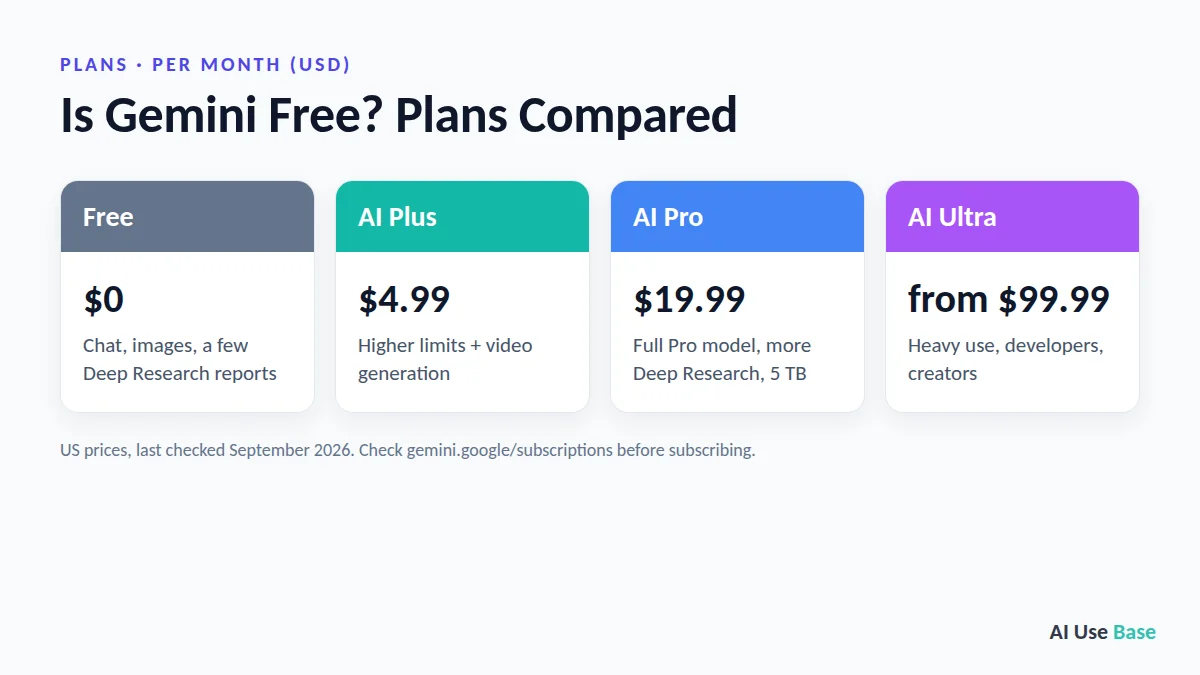
Yes. You can use Gemini for free with a Google account. Paid plans raise your limits and unlock the most capable models and tools. Here are the current US prices (last checked: September 2026):
| Plan | Price | Best for |
|---|---|---|
| Free | $0 | Everyday questions, writing, image generation and a few Deep Research reports |
| Google AI Plus | $4.99/month | Higher limits and video generation at a low price |
| Google AI Pro | $19.99/month | Full access to the Pro model, more Deep Research, 5 TB storage |
| Google AI Ultra | from $99.99/month | Heavy daily use, developers and creators |
Students, take note: eligible college students can get Google AI Pro (US) or Google AI Plus (140+ countries) free for one year. The offer runs through December 31, 2026. Check eligibility on the official Gemini subscriptions page.
How to Use Gemini: Getting Started in 5 Steps
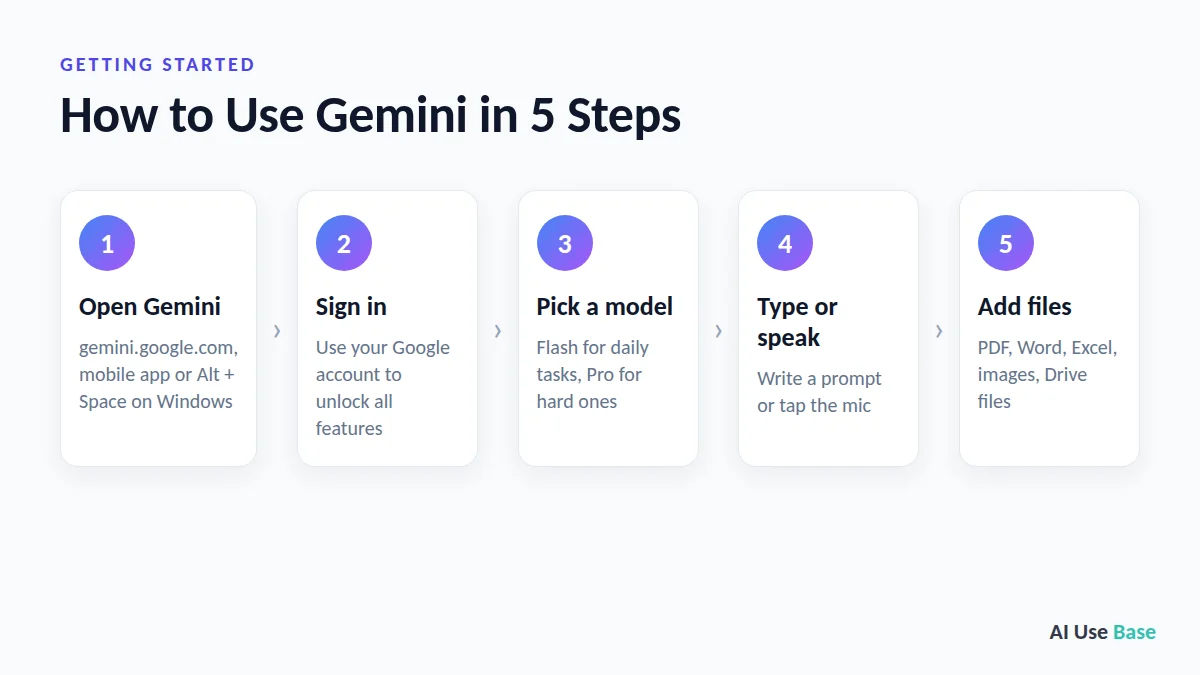
Here is how to use Gemini for the first time, on any device:
- Open Gemini. On a computer, go to gemini.google.com. On Android, open the Gemini app. On iPhone, download the Gemini app from the App Store. On Windows 10 or later, you can install the desktop app and press Alt + Space to open Gemini from anywhere.
- Sign in with your Google account. Signing in unlocks chat history, file uploads, image generation, Gems and Google app connections. Without an account, these features are not available.
- Choose a model. Use the model picker under the text box (more on this below).
- Type or speak your request. Write your prompt in the text box and press Send, or tap the microphone to talk.
- Add files if needed. Click the + (add file) icon to upload a PDF, Word file, Excel sheet, CSV, image or a file from Google Drive, then ask questions about it.
Which Gemini Model Should You Use?
Knowing which model to pick is a big part of how to use Gemini well. The model picker offers three levels:
- Flash-Lite: the fastest option for quick, simple tasks.
- Flash: the default for most people, with a good balance of speed and reasoning. The free plan runs on Gemini 3.6 Flash.
- Pro: the most capable model for complex writing, math, coding and analysis. It is slower, and free users get only limited access.
Rule of thumb: start with Flash, and switch to Pro when an answer needs deeper thinking.
How to Use Gemini: 10 Practical Ways
Now for the useful part. These are the best ways to use Gemini AI in daily life and work.
1. Write and Edit Anything
Writing is the easiest way to learn how to use Gemini. Ask it to draft emails, posts, reports or lesson plans, then refine them with follow-ups such as “make it shorter” or “more friendly”. Paste your own text and ask it to fix grammar or change the tone.
2. Understand Files and Images
Upload a long PDF and ask for a summary, key numbers or a list of action items. Upload a photo of a chart, receipt or handwritten note and ask Gemini to read and explain it. Learning how to use Gemini with your own files can save hours of reading.
3. Research Topics with Deep Research
Deep Research browses many websites for you and turns them into a structured report with sources. Use it for market research, comparing products or learning a new topic. The free plan includes a small number of reports each month.
4. Build Documents and Code in Canvas
Canvas opens a side-by-side editor where you and Gemini work on a document or piece of code together. You can highlight a paragraph and ask Gemini to rewrite just that part, or turn a draft into a web page, quiz or infographic.
5. Create and Edit Images with Nano Banana
Gemini’s image tool, Nano Banana, creates images from text and edits your photos with simple instructions like “change the background to a beach” or “make this look like a watercolor”.
6. Generate Short Videos
On paid plans, Gemini can turn a text prompt or an image into a short video clip with sound. It is useful for social posts, presentations and product demos. Limits depend on your plan.
7. Talk with Gemini Live
Gemini Live lets you have a natural voice conversation. On your phone you can also share your camera or screen and ask about what you see, which is great for practicing a language, brainstorming or getting help with a device.
8. Create Your Own Assistants with Gems
Gems are custom versions of Gemini with saved instructions. Create a “Writing Coach”, “Excel Helper” or “Study Buddy” once, and reuse it without repeating your instructions every time.
9. Use Gemini in Gmail, Docs and Drive
With your Google apps connected, you can ask Gemini to find an email, summarize a thread, draft a reply or pull information from files in your Drive. Personal Intelligence can also use your Gmail, Photos, YouTube and Search history to give more personal answers, if you allow it. If you use Google Workspace every day, this is how to use Gemini to save the most time.
10. Let Gemini Handle Tasks for You
Newer agent features such as Gemini Spark can carry out multi-step tasks for you, and Daily Brief turns your email and calendar into a short plan for the day. Availability depends on your plan and country, so check the latest Gemini release notes.
How to Write Better Gemini Prompts
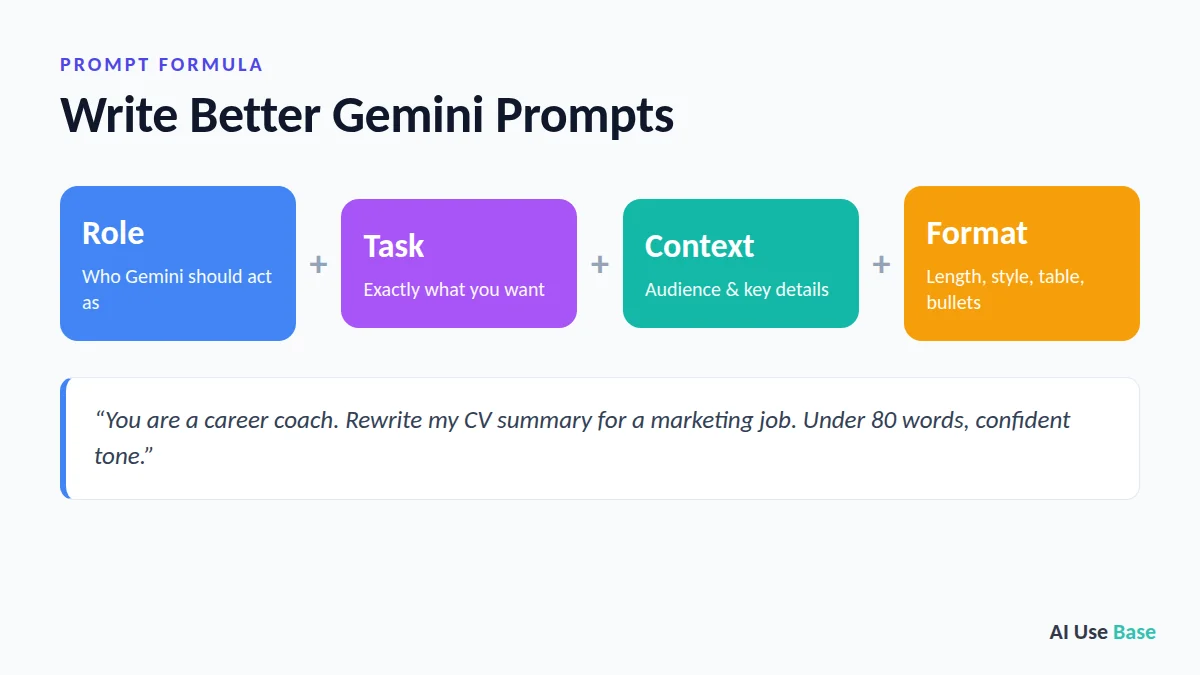
If you want to know how to use Gemini like a pro, start with your prompts. The quality of the answer depends on the quality of your prompt. A simple formula works for almost everything:
- Role: who Gemini should act as (a teacher, marketer, Excel expert).
- Task: exactly what you want.
- Context: who it is for and any key details.
- Format: length, style, table, bullet points.
Here are Gemini prompts you can copy:
- “You are a career coach. Rewrite my CV summary below for a marketing job. Keep it under 80 words and make it confident.”
- “Summarize the attached PDF in 5 bullet points, then list 3 questions I should ask in the meeting.”
- “Create a 7-day study plan to learn basic Excel formulas, 30 minutes per day, as a table.”
- “Explain how compound interest works to a 12-year-old, with one simple example.”
Do not settle for the first answer. Follow up with “give me 3 more options”, “make it simpler” or “what are you unsure about?”. This back-and-forth is the real secret of how to use Gemini effectively.
How to Use Gemini Safely: Privacy Tips
- Open Settings & help and review Keep Activity to control whether your chats are saved and used to improve Google’s services.
- Avoid pasting passwords, ID numbers or sensitive company data into a personal account.
- For work data, use a Google Workspace account managed by your company.
- Always double-check important facts, numbers and medical, legal or financial advice.
Gemini vs ChatGPT: Which Should You Use?
Both are excellent. Gemini is the better fit if you live in Google’s ecosystem and want strong free features plus cheap storage bundles. ChatGPT is often more versatile across tasks. For a full breakdown, read ChatGPT vs Gemini: Which AI Assistant Should You Use?, and see where Gemini fits among the best AI tools for each job.
Gemini Tips and Tricks to Get Better Results
Once you know the basics, these Gemini tips and tricks help you get more out of every chat. Some features depend on your plan, country and device, so you may not see all of them.
- Create a Gem for repeated tasks. A Gem is a custom version of Gemini with saved instructions, such as “proofread in US English and explain each change.” It saves you from retyping the same prompt.
- Use Deep Research for bigger questions. For topics that need many sources, such as comparing laptops or researching a market, Deep Research builds a longer report with links you can check.
- Use Canvas for documents and code. Canvas opens a side editor so you can edit a draft directly and ask Gemini to change only one part.
- Connect your Google apps. Ask about your own Gmail, Drive or Calendar, for example “Find the flight confirmation in my Gmail and list the times.” Turn this on in settings first.
- Double-check answers. Use the Google Search double-check option (where available) to see which statements are supported by web sources.
- Talk instead of type. Gemini Live is great for brainstorming, practising a presentation or a language while you walk.
- Upload files and images. Add a PDF, screenshot or photo and ask specific questions about it rather than describing it in words.
- Edit your prompt instead of starting over. If an answer misses, edit your last message and add the missing detail.
If you are still choosing an assistant, our full ChatGPT vs Gemini comparison goes task by task, and how to use Perplexity covers another strong option for research.
Hands-On Test: Using Gemini Free for Everyday Tasks
We tried a few everyday requests in the free Gemini app on October 18, 2026 to see how the tips above play out in practice.
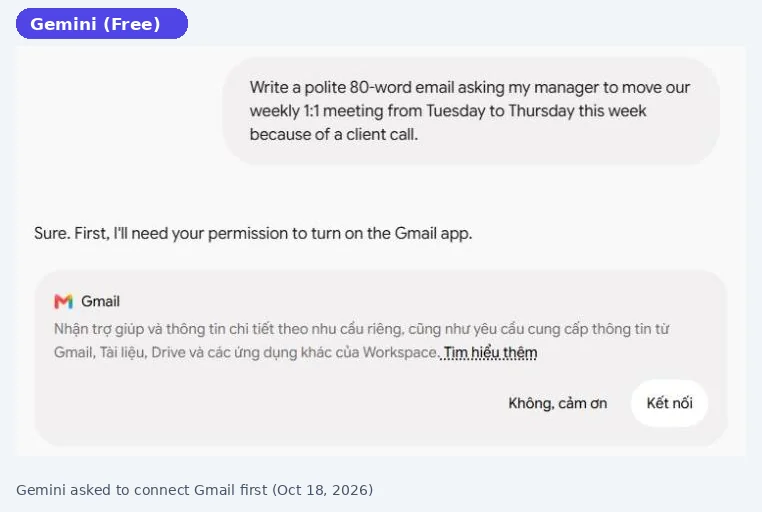
- Writing an email: when we asked for a short email to a manager, Gemini first asked permission to turn on the Gmail app. We chose “No thanks” and replied “Just write the email text here,” and it then wrote a good draft with a subject line. If you do not want Gemini reading your inbox, you can always decline.
- Planning a trip: a request for a 3-day Kyoto plan in a table came back as a clean, well-organized table. It skipped cost estimates, so add a follow-up like “Add estimated daily costs” when you need numbers.
- Making a quiz: a 5-question water cycle quiz had correct answers and realistic distractors, though some vocabulary was above the requested grade level.
The lesson: Gemini does exactly what you ask and tends to keep answers short, so specific prompts and quick follow-ups matter more than with chattier assistants. See how it compared side by side in our ChatGPT vs Gemini hands-on test.
Frequently Asked Questions
How do I use Gemini for free?
Go to gemini.google.com or open the Gemini app and sign in with any Google account. The free plan includes chat, file uploads, image generation, Gems, Canvas and a limited number of Deep Research reports each month.
How do I use Gemini on my phone?
On Android, open the Gemini app or hold the power button (or say “Hey Google”) if Gemini is your assistant. On iPhone, install the Gemini app from the App Store and sign in with your Google account.
How to use Gemini on a computer?
The easiest way to learn how to use Gemini on a computer is to open gemini.google.com in Chrome, Edge, Safari or Firefox and sign in with your Google account. On Windows 10 or later, you can also install the Gemini desktop app and press Alt + Space to open it from anywhere.
Can Gemini create images?
Yes. Gemini uses Nano Banana to create images from text and edit your photos with simple instructions. It works on the free plan with daily limits.
Is Gemini better than ChatGPT?
It depends on your needs. Gemini is better integrated with Gmail, Docs and Android and has a generous free plan, while ChatGPT is often more versatile. Many people use both.
Is Gemini safe to use?
Gemini is generally safe for everyday tasks. You can control whether your chats are saved in the Keep Activity setting. Avoid sharing sensitive personal or company data in a personal account, and verify important information.
Which Gemini model is best?
Use Flash for most everyday tasks because it is fast and capable. Switch to Pro for complex reasoning, math, coding or long documents. Flash-Lite is best when you only need a very quick answer.
Final Thoughts
Now you know how to use Gemini from setup to advanced features. Learning how to use Gemini takes only a few minutes, but using it well can save you hours every week. Start with the free plan, try the ten use cases above, and build a Gem for the task you repeat most. Once you hit the limits, Google AI Plus or Pro is an affordable upgrade.
Looking for more step-by-step tutorials? Browse our AI Guides.
Related guides: you may also like our guides to Claude vs Gemini and how to use Claude.
5 thoughts on “How to Use Gemini in 2026: Beginner’s Guide + Best Tips”