To learn how to use Perplexity, go to perplexity.ai or open the app, type a question the way you would ask a person, and read the answer along with its numbered sources. For deeper work, switch the mode to Pro Search or Research, and save related searches in a Project so you can come back to them.
Perplexity is an AI answer engine: it searches the web, reads the results and writes a summary with citations you can check. This guide explains the search modes, sources, Projects, the Comet browser, plans and the prompts that get the best results.
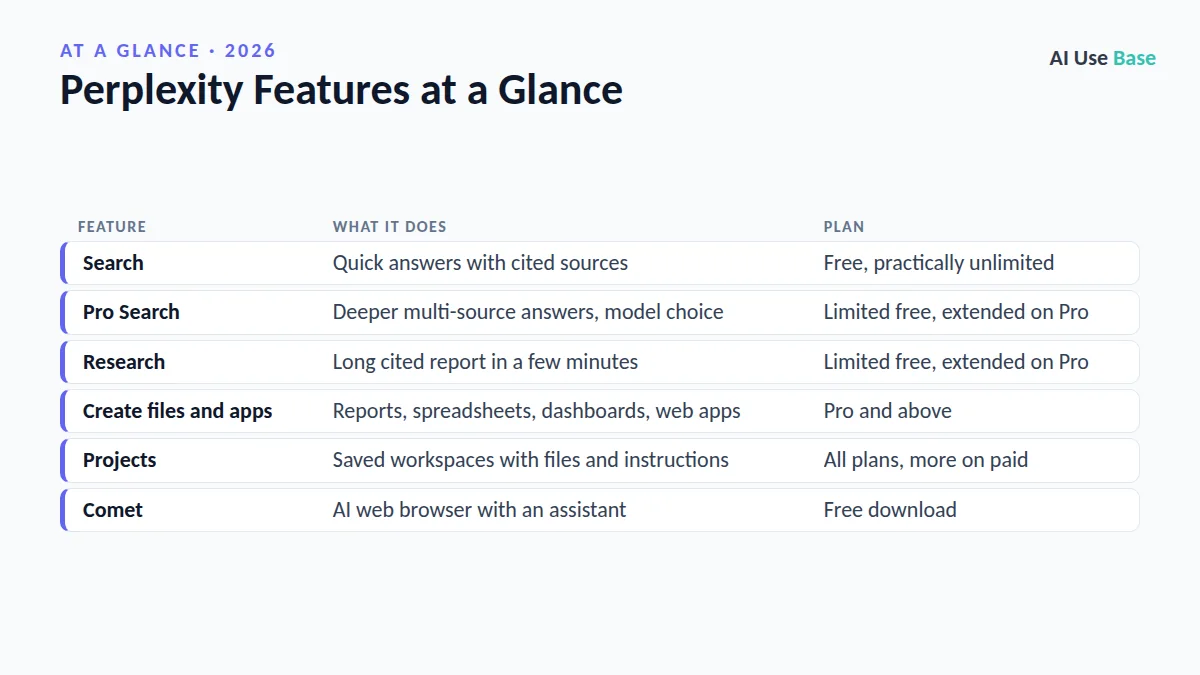
Perplexity Features at a Glance
| Feature | What it does | Plan |
|---|---|---|
| Search | Quick answers with cited sources | Free, practically unlimited |
| Pro Search | Deeper multi-source answers, model choice | Limited free, extended on Pro |
| Research | Long cited report in a few minutes | Limited free, extended on Pro |
| Create files and apps | Reports, spreadsheets, dashboards, web apps | Pro and above |
| Projects | Saved workspaces with files and instructions | All plans, more on paid |
| Comet | AI web browser with an assistant | Free download |
What Is Perplexity?
Before you learn how to use Perplexity, it helps to know what it is. It combines a search engine with large language models. Instead of a list of links, you get a written answer with numbered citations, and you can ask follow-up questions because it remembers the earlier parts of the conversation (Perplexity calls each conversation a session).
Paid subscribers can pick which AI model powers Pro Search, including models from OpenAI, Anthropic and Google, or leave it on “Best” to let Perplexity choose. Free users get an automatically selected model.
How to Use Perplexity: Getting Started
- Open Perplexity. Visit perplexity.ai or install the iOS, Android, Mac or Windows app. You can search without an account, but signing in saves your history.
- Ask a full question. Write a complete sentence with context, such as your location, budget or deadline.
- Choose a mode. Use the mode selector in the search box to switch between standard search, Pro Search, Research and Create files and apps.
- Set your sources. Choose Web, Academic or other source types when you want answers from specific kinds of content.
- Check the citations. Click the numbered sources to confirm key facts before you rely on them.
- Follow up. Ask “compare these options in a table” or “what are the downsides?” to dig deeper.
Search Modes: How to Use Perplexity’s Options
Standard Search and Pro Search
Standard search is fast and fine for simple facts. Pro Search runs a more thorough multi-step search and returns a longer, organized answer. Free accounts get a small number of Pro Searches, while Pro subscribers get a much higher allowance.
Research
Research mode performs dozens of searches, reads hundreds of sources and writes a structured report, usually in under three minutes. You can export the report to PDF or a document, or turn it into a shareable Page. You cannot choose the model in Research; Perplexity picks a combination automatically.
Create Files and Apps
This mode (formerly called Labs) builds finished outputs such as reports, spreadsheets, dashboards and simple web apps from a single prompt. It is a paid feature and works best when you describe the final deliverable clearly.
Projects: Organize Your Research
If you want to know how to use Perplexity for ongoing work, Projects are the answer. Projects (the feature many people still know as Spaces) group related searches, files and instructions in one place. Click Projects in the left sidebar, then New project, give it a name, and add instructions like “always cite peer-reviewed sources” plus any reference files. Projects are private by default, and Pro and Max users can invite a few collaborators.
Comet: Perplexity’s AI Browser
Comet is Perplexity’s web browser for Mac, Windows, iOS and Android, now free to download. It has a built-in assistant that can summarize pages, compare tabs and help with tasks. The agent features that act on websites for you have usage limits that depend on your plan, with the highest limits on Max.
8 Practical Ways to Use Perplexity (With Prompts)
Here is how to use Perplexity for everyday research. Swap in your own details.
- Quick fact check:
Is it true that [claim]? Show the most reliable sources. - Product research:
Compare the 3 best budget laptops for students under $700 in a table with pros and cons. - Academic search: With Academic sources on, try
Summarize recent studies on [topic] and list their sample sizes. - News catch-up:
What happened this week with [company or topic]? Give a timeline. - Travel planning:
Plan a 3-day trip to [city] in [month] with a budget of $[amount]. - Market research: In Research mode,
Write a report on the [industry] market: size, key players and trends. - Learn a skill:
Find the best free resources to learn [skill] and order them from beginner to advanced. - Build a deliverable: In Create files and apps,
Make a spreadsheet comparing [options] on price, features and reviews.
Students will find more ideas in our guide to the best AI tools for students.
Perplexity Plans and Pricing
You can learn how to use Perplexity on the Free plan and upgrade later if you need more.
Prices last checked October 2026 on Perplexity’s plan comparison page, in US dollars.
| Plan | Price | Key extras |
|---|---|---|
| Free | $0 | Unlimited basic search, a few Pro Searches, limited Research |
| Pro | Monthly or annual subscription (see pricing page) | Extended Pro Search and Research, model choice, image and video generation, more uploads |
| Education Pro | $10/month | Pro features for verified students and educators |
| Max | $200/month or $2,000/year | Highest model access, Comet Max Assistant, Perplexity Computer extras |
| Enterprise Pro | From $40/seat/month | No training on your data, shared Projects, admin tools |
Tips on How to Use Perplexity Better
- Add constraints. Dates, locations and budgets make answers far more useful.
- Ask for a format. Tables, bullet points or a timeline make results easier to scan.
- Open the sources. Citations are only helpful if you read the ones behind important claims.
- Use Research sparingly on Free. Save it for questions that need many sources.
- Keep projects tidy. One Project per topic keeps follow-up searches focused.
Knowing how to use Perplexity pairs well with a general assistant. See our ChatGPT beginner guide and our roundup of the best AI tools.
Limitations
- Sources can be weak. Perplexity cites what it finds, which may include low-quality or outdated pages.
- Summaries can misread sources. Always confirm numbers and quotes in the original page.
- Limits on free features. Pro Search, Research and uploads are capped on the Free plan.
- Not for private data. Avoid sharing sensitive information unless you use an Enterprise plan.
Frequently Asked Questions
Is Perplexity free to use?
Yes, and the Free plan is the easiest way to learn how to use Perplexity. The free plan offers practically unlimited basic searches plus a small number of Pro Searches and limited Research. Paid plans add more advanced searches, model choice and file tools.
What is the difference between Pro Search and Research in Perplexity?
Pro Search gives a deeper, multi-step answer to one question in seconds. Research runs dozens of searches, reads hundreds of sources and writes a full report, which usually takes a few minutes.
What happened to Perplexity Spaces?
Perplexity now calls this feature Projects. A Project groups related searches, files and custom instructions, and you can create one from the Projects section in the left sidebar.
Is Perplexity better than Google?
Perplexity is better when you want a summarized answer with sources in one place. Google is still useful for browsing many sites, local results and shopping. Many people use both.
How do I use Perplexity for academic research?
Set the sources to Academic, ask a specific question, and check every citation in the original paper. Learning how to use Perplexity this way saves time, but it does not replace reading the studies yourself.
Final Thoughts
Once you learn how to use Perplexity, it can replace many traditional web searches: ask a clear question, pick the right mode, and check the citations. The Free plan covers most casual research, while Pro makes sense if you run deep research every week.
Start with standard search for quick facts, move to Research for big questions, and save ongoing topics in Projects. That simple routine gets the most out of the tool.