To learn how to use Nano Banana, open the Gemini app or gemini.google.com, choose the image tool, and describe the picture you want, or upload a photo and tell Gemini what to change. Nano Banana is Google’s nickname for its Gemini image generation and editing models, and it is especially good at precise edits, blending several photos, and keeping a person or product looking the same across images.
This guide on how to use Nano Banana explains where to access it, how to write editing prompts that work, how to keep characters consistent, the limits on free and paid plans, and how SynthID marks every image as AI-generated.
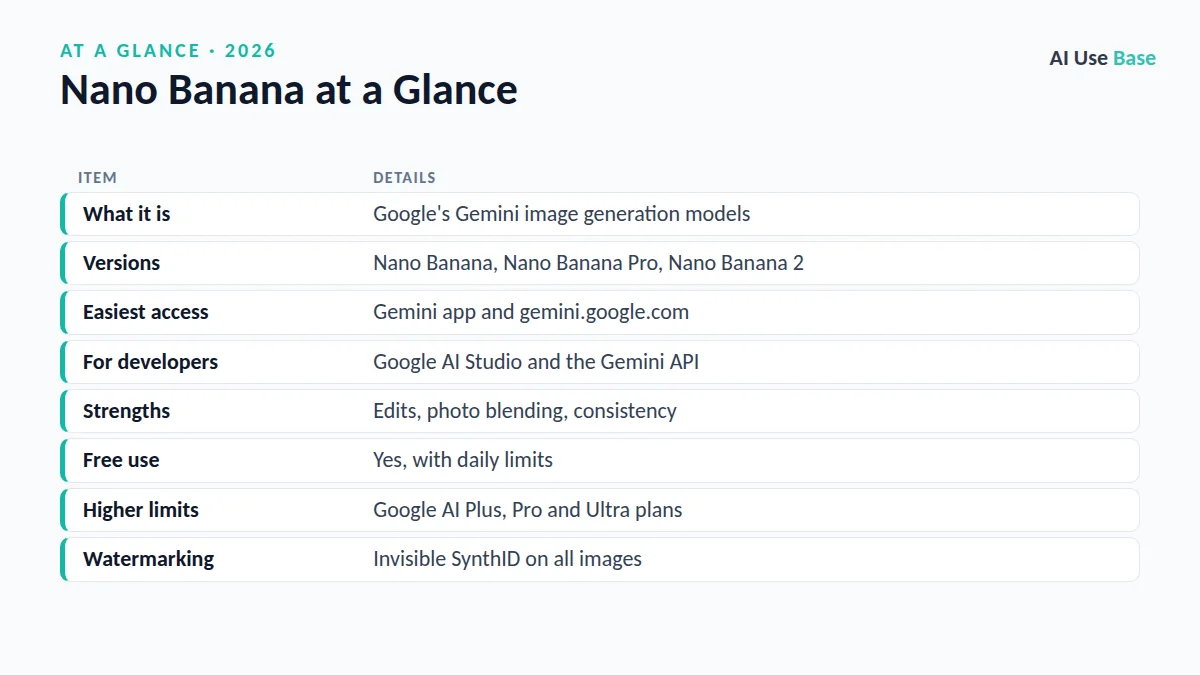
Nano Banana at a Glance
| Item | Details |
|---|---|
| What it is | Google’s Gemini image generation models |
| Versions | Nano Banana, Nano Banana Pro, Nano Banana 2 |
| Easiest access | Gemini app and gemini.google.com |
| For developers | Google AI Studio and the Gemini API |
| Strengths | Edits, photo blending, consistency |
| Free use | Yes, with daily limits |
| Higher limits | Google AI Plus, Pro and Ultra plans |
| Watermarking | Invisible SynthID on all images |
What Is Nano Banana?
Nano Banana started as the codename for Gemini 2.5 Flash Image and stuck as its public name. Google then released Nano Banana Pro, built for higher quality and better text in images, and in February 2026 introduced Nano Banana 2 in the Gemini app, a faster model with strong quality. Google continues to ship updates, so the exact model you get may change over time.
What sets Nano Banana apart is conversational editing. Instead of re-rolling a whole image, you can say “make the jacket red” or “remove the person in the background,” and it changes only that part. For a wider comparison, see our guide to the best AI image generators.
How to Use Nano Banana: Step by Step
- Open Gemini. Go to gemini.google.com or open the Gemini app and sign in with your Google account.
- Choose the image tool. Select the create image option in the tools menu, or simply ask Gemini to “create an image of…”
- Describe or upload. Type a detailed prompt, or tap the plus icon to upload one or more photos you want to edit.
- Generate. Send the prompt and wait a few seconds for the result.
- Refine in conversation. Ask for one change at a time, such as lighting, background or style.
- Download. Use the download button to save the image at full resolution.
New to the assistant itself? Our Gemini beginner guide covers the basics.
Where to Access Nano Banana
Gemini app (everyone)
For most people, how to use Nano Banana starts in the Gemini app. The Gemini app is the simplest place to start and works on web, Android and iOS. Paid Google AI plans can choose a higher-quality model where available.
Google AI Studio (power users)
Google AI Studio lets you try the image models with more control, such as aspect ratio settings, and is a good test bench before building with the API.
Gemini API (developers)
For developers, how to use Nano Banana means the API. You can call Nano Banana models through the Gemini API and Vertex AI, with pricing per image. Google’s image generation docs list current model names and code samples.
Editing Prompts That Work
Editing is the core of how to use Nano Banana well. Be specific about what should change and what must stay the same. Here are eight practical prompts to adapt.
- Background swap:
Replace the background with a sunny beach. Keep the person, pose and lighting on their face unchanged. - Object removal:
Remove the trash can on the left and fill the area naturally. - Color change:
Change the sofa to dark green velvet. Do not change anything else. - Photo restoration:
Restore this old photo: fix scratches, improve sharpness and add natural color. - Product shot:
Place this product on a marble counter with soft morning light, studio quality. - Blend photos:
Combine the dog from image 1 with the living room from image 2 so it sits on the rug. - Style transfer:
Turn this photo into a watercolor illustration while keeping the composition. - Text in images:
Create a poster for "Spring Bake Sale, May 3" in bold, readable letters with pastel cupcakes.
Need to remove backgrounds in bulk instead? See our list of free AI background removers.
How to Keep Characters Consistent
Consistency is why many people want to learn how to use Nano Banana. To keep the same person, pet or product across images, start from a clear reference photo and refer back to it in every prompt.
- Upload a reference. Use a sharp, well-lit image of the face or product.
- Name the subject. Say “the same woman from the first image” or give a character a name and reuse it.
- Change one thing at a time. Swap only the outfit, then only the setting, to avoid drift.
- Stay in one chat. Keep a series in a single conversation so Gemini remembers earlier images.
- Restart if it drifts. If features start changing, re-upload the original reference.
Plans, Limits and Pricing
You can learn how to use Nano Banana for free in the Gemini app, but free accounts have daily image limits and may get a lighter model when demand is high. Google AI Plus, Pro and Ultra subscriptions raise those limits and unlock higher-quality options. Limits and prices change and vary by country, so check Google’s Gemini subscription page for current details.
| Access | Cost | Good for |
|---|---|---|
| Gemini app (free) | Free, daily limits | Trying edits and casual use |
| Google AI Plus / Pro | Monthly subscription | Regular creators |
| Google AI Ultra | Premium subscription | Heavy use and top-tier models |
| Gemini API | Pay per image | Apps and automated workflows |
SynthID and Responsible Use
Every image made or edited with Nano Banana carries an invisible SynthID watermark, and images in the Gemini app may also show a visible mark depending on your plan. You can upload an image to Gemini and ask whether it was made with Google AI; Google explains how in its SynthID verification help page.
Responsible use is part of how to use Nano Banana. Use edits honestly. Do not create misleading images of real people, and disclose AI edits in news, school or commercial work where it matters. Gemini also blocks some requests under Google’s usage policies.
Tips: How to Use Nano Banana Like a Pro
- Describe the scene, not just keywords. Full sentences about subject, setting, lighting and mood work best.
- Specify the format. Mention aspect ratio, such as 16:9 for slides or 9:16 for stories.
- Protect what matters. Add “keep everything else the same” to edit prompts.
- Use camera language. Terms like “close-up,” “wide angle” and “shallow depth of field” help.
- Check text carefully. Spelling in images has improved, but still proofread.
Limitations
Knowing how to use Nano Banana well includes knowing its weak spots. Nano Banana can still change small details you did not ask for, such as hands, jewelry or background text. Faces may drift over long editing sessions, and some edits to real people are restricted. Free limits can run out quickly if you regenerate often.
If you want other tools to compare, our roundup of free Midjourney alternatives covers more options.
Frequently Asked Questions
Is Nano Banana free?
Yes. You can learn how to use Nano Banana for free in the Gemini app with daily limits. Google AI Plus, Pro and Ultra subscriptions raise the limits and unlock higher-quality options, and developers pay per image through the Gemini API.
What is the difference between Nano Banana, Nano Banana Pro and Nano Banana 2?
Nano Banana was the original Gemini 2.5 Flash Image model. Nano Banana Pro focuses on the highest quality and better text in images, while Nano Banana 2, launched in February 2026, offers strong quality at faster speed.
How do I edit a photo with Nano Banana?
Open Gemini, upload your photo, and describe the change, such as replacing the background or removing an object. Add a line like keep everything else the same, and make one change at a time for the best results.
Can I tell if an image was made with Nano Banana?
Yes. Images made with Google AI carry an invisible SynthID watermark. Upload the image to the Gemini app and ask whether it was created with Google AI to check.
Where can I use Nano Banana besides Gemini?
Developers and power users can access it in Google AI Studio, through the Gemini API, and on Vertex AI. Google has also brought its image models to other products such as Flow.
Final Thoughts
Once you know how to use Nano Banana, you can fix photos, create product shots and build consistent characters just by describing what you want. Start free in the Gemini app, write specific edit prompts, and change one thing at a time.
For more creative and productivity picks, browse our guide to the best AI tools.