
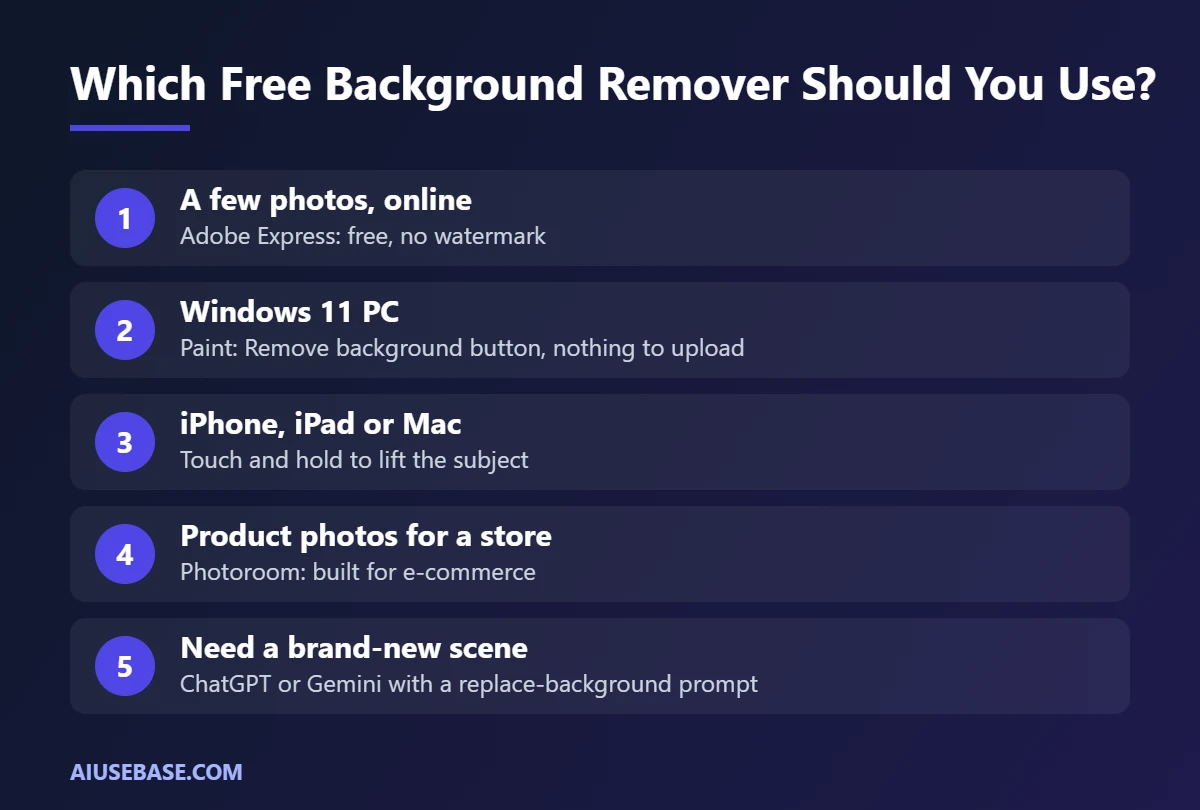
The most convenient free AI background removers right now are Adobe Express (online, nothing to install), Paint in Windows 11 (already on your PC) and Lift Subject on iPhone (just touch and hold the photo). All three remove a background in seconds with no watermark. If you need to process product photos in bulk, Photoroom is the better choice.
Last updated: September 27, 2026.
Heads-up: remove.bg, the best-known background remover, is closing its standalone website on December 1, 2026 and moving its technology into Canva. If you rely on remove.bg, try the options below.
Free AI Background Removers Compared
| Tool | Platform | Free? | Best for |
|---|---|---|---|
| Adobe Express | Web, mobile | Yes, no watermark | A few quick removals |
| Paint (Windows 11) | Windows PC | Yes, built in | Office users, offline-friendly work |
| iPhone, iPad, Mac | Apple devices | Yes, built in | Stickers and quick cut-outs |
| Photoroom | Web, mobile | Yes, with limits | Product photos for e-commerce |
| Microsoft Designer | Web | Yes, credit-based | Remove background, then design |
| Canva | Web, mobile | No (Pro feature) | Existing Canva Pro users |
| ChatGPT / Gemini | Web, mobile | Yes, limited | Replacing a background with a new scene |
1. Adobe Express: Free Online Background Remover
Adobe Express has a free Remove background quick action. Upload a photo and get a transparent PNG.
- Open Adobe Express and search for the Remove background tool.
- Upload a JPG or PNG.
- Download the transparent PNG, or select Customize to add a color background or text.
Pros: fast, handles hair reasonably well, no watermark. Cons: you need a free Adobe account to download.
2. Paint in Windows 11: Built In, Nothing to Install
Paint on Windows 11 includes an AI background removal button.
- Open the image in Paint.
- On the toolbar, select Remove background.
- Save as PNG to keep the transparency.
The Windows Photos app can also blur or replace backgrounds. It is the handiest option for office work because nothing is uploaded to a website.
3. iPhone, iPad and Mac: Lift Subject in One Touch
On an iPhone running iOS 16 or later:
- Open the photo in Photos.
- Touch and hold the person or object until a glowing outline appears.
- Choose Copy or Share, then paste into Messages, Keynote or save it as a sticker.
On a Mac, open the image in Preview or Photos, right-click the subject and choose Copy Subject.
4. Photoroom: Built for Product Photos
Many online stores use Photoroom to cut out products and place them on white or AI-generated backgrounds. The free plan removes backgrounds; batch editing, high-resolution exports and many templates require Pro.
Tip: shoot products on a plain, well-lit background for much cleaner edges.
5. Microsoft Designer: Remove, Then Design
Microsoft Designer includes background removal and AI image generation, handy if you want to build a social post right away. Free Microsoft accounts get 15 AI credits per month, and Microsoft 365 consumer plans get more. See the full comparison in Canva AI vs Microsoft Designer.
6. Canva: Convenient, But Pro Only
Canva’s one-click Background Remover is a paid feature. On a free account the button appears but asks you to start a trial or upgrade. After remove.bg shuts down, its background removal technology moves into Canva.
7. ChatGPT and Gemini: Replace Backgrounds with a Prompt
If you want to put your product in a new scene rather than just remove the background, upload the photo to ChatGPT or Gemini and try:
Keep the product exactly as it is (same shape, colors and label text). Replace the background with a light wooden table in soft morning light, with a small blurred plant behind it. Square 1:1 format.
AI image tools can distort text and small product details, so compare carefully with the original before using the image to sell.
Tips for Cleaner Cut-Outs
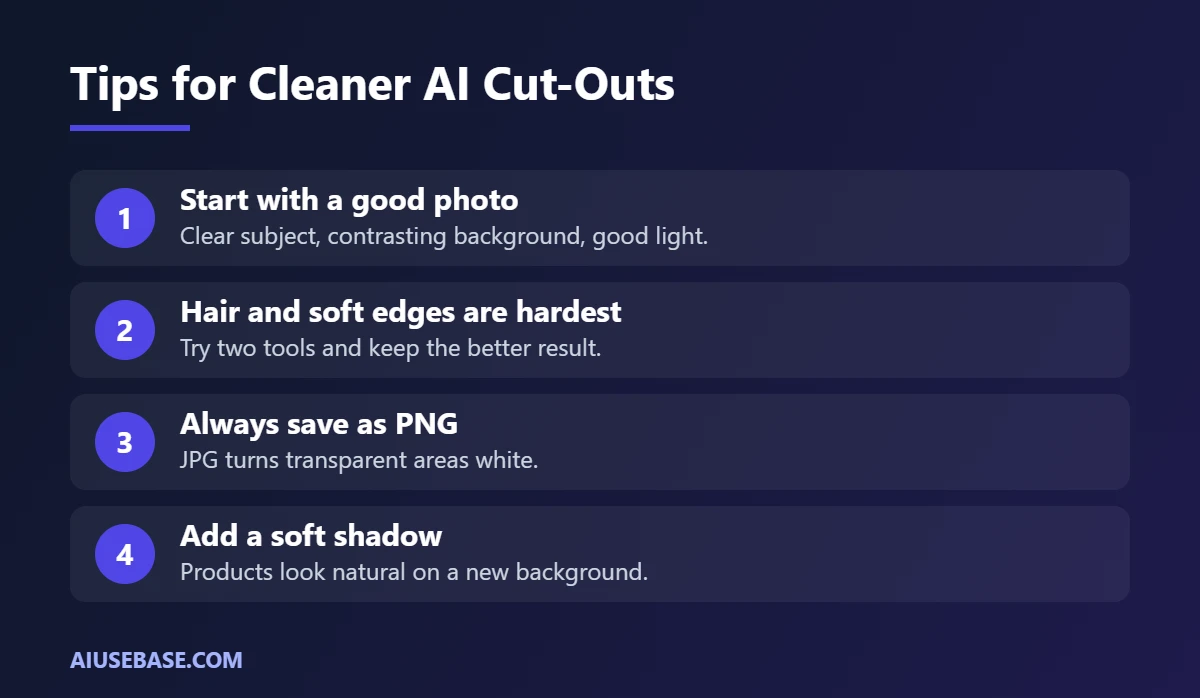
- Start with a good photo: subject clearly separated from the background, contrasting colors, good light.
- Hair and soft edges are the hardest: try two tools and keep the better result.
- Always save as PNG for transparency; JPG turns transparent areas white.
- Add a soft shadow when placing products on a new background so they look natural.
Once your images are ready, turn them into posts with our AI for marketing guide.
Frequently Asked Questions
What is the best free AI background remover?
For most people, Adobe Express is the best free online option because it has no watermark and handles edges well. On Windows 11, Paint is the fastest built-in option; on iPhone, touch and hold a photo to lift the subject.
Is remove.bg shutting down?
Yes. The standalone remove.bg website will stop operating on December 1, 2026 at 9:00 a.m. CET, and its background removal moves into Canva. If you have remaining credits, use them before then.
Is Canva’s background remover free?
No. Canva’s Background Remover is part of its paid plans. You can start a Canva Pro trial or use the free tools listed above.
Does AI background removal reduce image quality?
Some free online tools limit download resolution. Paint and the built-in iPhone feature keep the original image size.
Can I remove backgrounds in bulk for free?
Rarely. Batch processing is usually a paid feature (Photoroom Pro, Canva Pro). For a few dozen images, process them one by one in Paint or Adobe Express.
What is a totally free AI background remover I can use?
Paint in Windows 11 and Lift Subject on iPhone, iPad and Mac are built in, completely free and add no watermark. If you prefer a website, Adobe Express removes backgrounds for free in your browser with a free account.
Which AI tool removes backgrounds from images best?
For product photos, Photoroom gives the cleanest edges. For everyday photos, Adobe Express and Lift Subject handle hair and soft edges well. Results depend on the photo, so try two tools on a difficult image and compare.
Is there a free AI background remover app for phones?
Yes. On iPhone you can touch and hold the subject of a photo to lift it from the background, with no app needed. On Android, Photoroom and the Adobe Express app both offer free background removal.
Final Thoughts
You no longer need professional software to remove a background. Start with what is already on your device (Paint or iPhone), use Adobe Express when you need an online tool, and move to Photoroom if you sell products and edit lots of photos. For more options, see the best AI tools by use case.
Looking for more step-by-step tutorials? Browse our AI Guides.
1 thought on “7 Best AI Background Removers in 2026 (Free, Online & Phone)”