Want to learn how to use ChatGPT properly? OpenAI’s assistant can now search the web, analyze files, create images, talk in real time, build simple websites and even complete long tasks for you. Yet most people still use it like a basic chatbot. This guide shows you how to use ChatGPT step by step, from your first prompt to the features that save the most time.
You will learn how to sign up, which plan you actually need, how to write better prompts, and ten practical ways to use it at work, at school and at home.
What Is ChatGPT?
ChatGPT is an AI assistant made by OpenAI. You type or speak a request, and it answers questions, writes and edits text, explains ideas, analyzes data, creates images and more. It is the most widely used AI tool in the world, and it works well in dozens of languages.
Before you learn how to use ChatGPT, pick where you want to use it: on the web at chatgpt.com, in the iPhone or Android app, or in the desktop app for Mac and Windows.
Is ChatGPT Free? Plans Explained
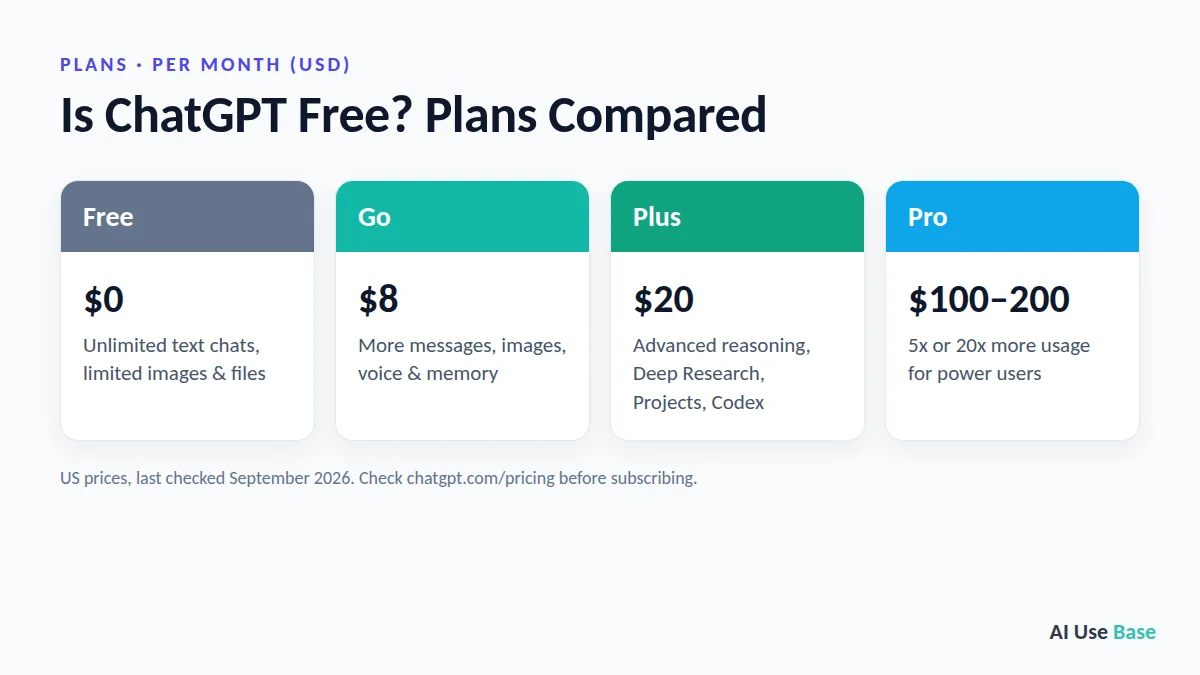
Yes. The free plan now includes unlimited text chats, with limits on uploads, images, voice and advanced tools. Here are the current US prices for individual plans (last checked: September 2026):
| Plan | Price | Best for |
|---|---|---|
| Free | $0 | Unlimited text chats, limited images, files and voice |
| Go | $8/month | More messages with tools, images, voice and memory |
| Plus | $20/month | Advanced reasoning, Deep Research, Projects, tasks and Codex |
| Pro | $100 or $200/month | Power users who need 5x or 20x more usage |
Free and Go show ads in some countries, while Plus and above are ad-free. Always check the official ChatGPT pricing page for your country before subscribing.
How to Use ChatGPT: Getting Started in 5 Steps
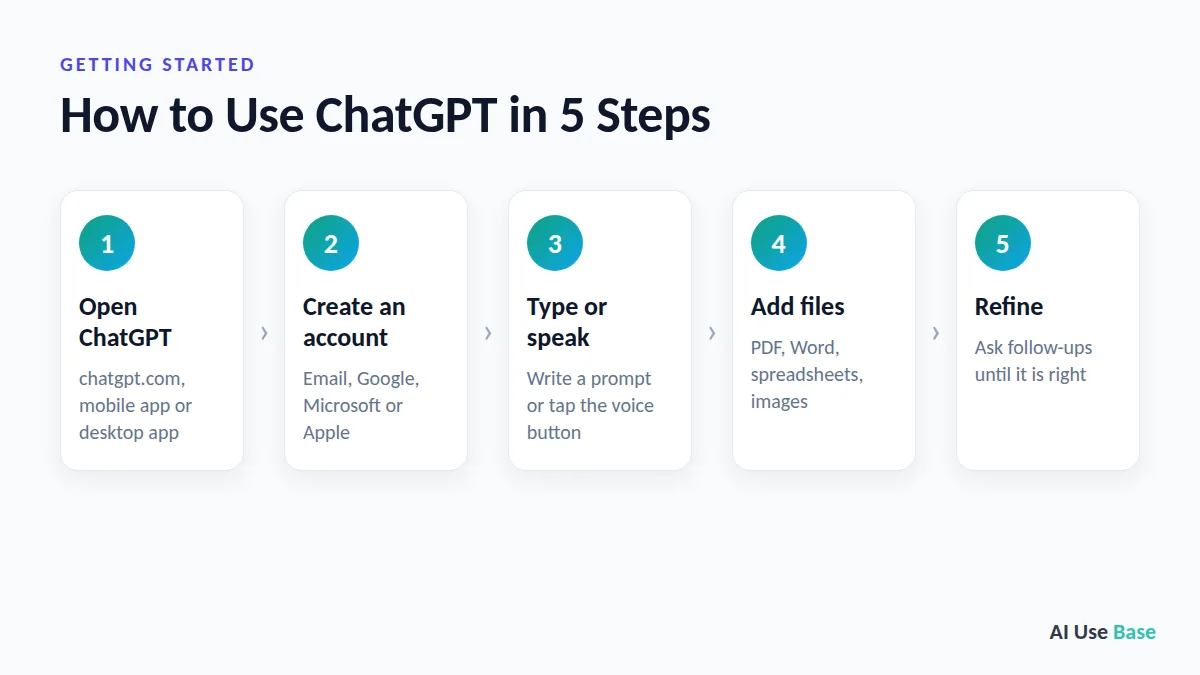
Here is how to use ChatGPT for the first time, on any device:
- Open ChatGPT. Go to chatgpt.com in your browser, or download the official ChatGPT app by OpenAI from the App Store, Google Play or the desktop download page.
- Create a free account. Sign up with your email, Google, Microsoft or Apple account. Logging in saves your chat history and unlocks files, images and memory.
- Type or speak your request. Write your prompt in the message box and press Enter, or tap the voice button to talk.
- Add files or photos if needed. Click the + button to upload a PDF, Word file, spreadsheet or image, then ask questions about it.
- Refine the answer. Reply with follow-ups like “shorter”, “more examples” or “explain it more simply” until you get what you need.
How to Use ChatGPT: 10 Practical Ways
These are the most useful ways to use ChatGPT in daily life and work.
1. Write and Edit Anything
Writing is the easiest way to learn how to use ChatGPT. Ask it to draft emails, social posts, reports, cover letters or lesson plans. Paste your own text and ask it to fix grammar, change the tone or shorten it.
2. Search the Web for Up-to-Date Answers
ChatGPT can search the internet and show sources, so you can ask about news, prices, opening hours or recent events. Click the sources to check the facts yourself.
3. Analyze Files and Data
Upload a long PDF and ask for a summary, or upload a spreadsheet and ask for totals, trends and a chart. You can also connect Google Drive, Dropbox, Box or SharePoint and work with files already in your cloud storage. Learning how to use ChatGPT with your own files can save hours of reading.
4. Research Topics with Deep Research
Deep Research browses many websites and writes a structured report with citations. Use it for market research, product comparisons or learning a new subject. It is limited on Go and expanded on Plus and Pro.
5. Create and Edit Images
ChatGPT Images can create pictures from text, turn a rough sketch into an image, and edit your photos with simple instructions. It is great for thumbnails, social graphics, presentations and even custom sticker packs.
6. Talk with ChatGPT Voice
Voice mode lets you have a natural conversation, even interrupting or talking at the same time. It is useful for practicing a language, brainstorming while walking or getting quick hands-free help.
7. Organize Work with Projects and Memory
Projects keep related chats, files and instructions together, for example “Thesis”, “Marketing plan” or “House renovation”. Memory lets ChatGPT remember your preferences over time, and you can view or delete what it remembers at any time.
8. Connect Your Apps
ChatGPT can connect to apps such as Gmail, Google Calendar and Contacts, so you can ask it to find an email, summarize your schedule or draft a reply. If you live in your inbox and calendar, this is how to use ChatGPT to save the most time.
9. Let ChatGPT Work for You
On paid plans, ChatGPT Work can handle longer tasks across research, apps, files and document creation, and scheduled tasks can run for you once or on a schedule. ChatGPT Sites can also turn an idea into a simple website or lightweight app.
10. Write and Fix Code with Codex
Codex is OpenAI’s coding agent. It can write features, fix bugs and explain code in your projects. It is included in Plus, with limited access on Go. For a developer comparison, read our ChatGPT vs Claude Sonnet 5 for coding guide.
How to Write Better ChatGPT Prompts
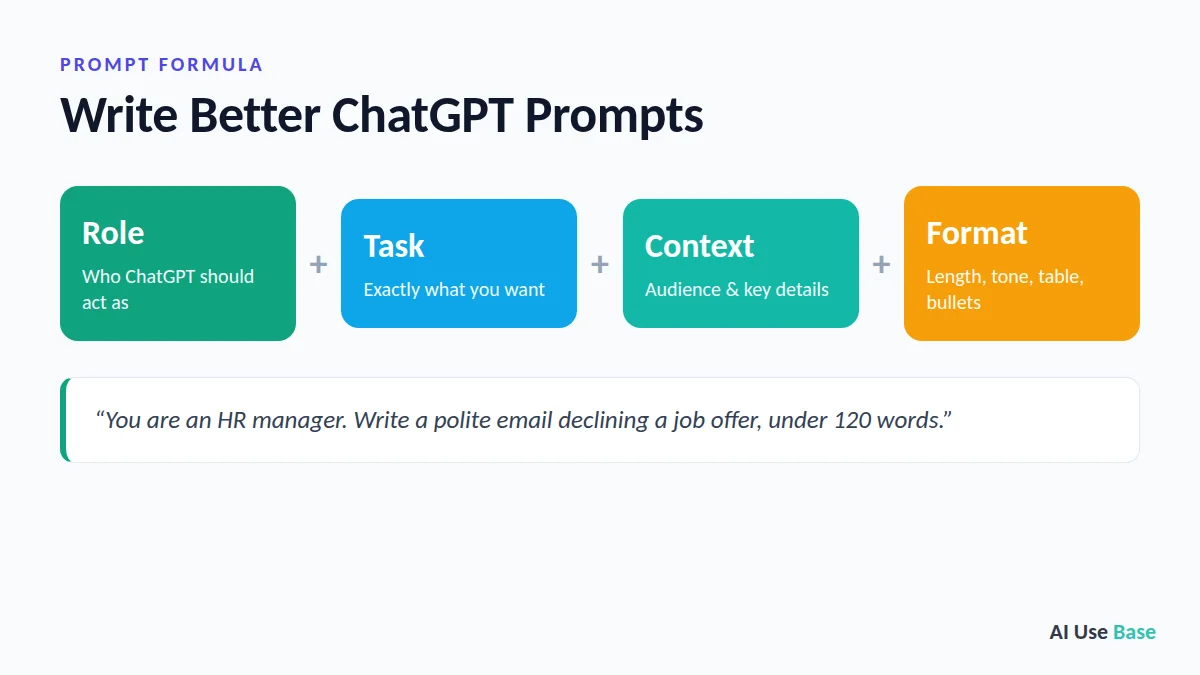
If you want to know how to use ChatGPT like a pro, start with your prompts. A simple formula works for almost everything:
- Role: who ChatGPT should act as (a teacher, recruiter, Excel expert).
- Task: exactly what you want.
- Context: who it is for and any key details.
- Format: length, tone, table, bullet points.
Here are ChatGPT prompts you can copy:
- “You are an HR manager. Write a polite email declining a job offer, under 120 words.”
- “Summarize the attached report in 5 bullet points and list 3 risks I should know about.”
- “Create a 4-week plan to learn basic Python, 30 minutes per day, as a table.”
- “Explain inflation to a 12-year-old with one everyday example.”
Do not stop at the first answer. Ask “give me 3 more options”, “what did you assume?” or “make it simpler”. This back-and-forth is the real secret of how to use ChatGPT effectively.
How to Use ChatGPT Safely: Privacy Tips
- Open Settings and review the new Privacy Center to control memory, personalization, data use and connected apps in one place.
- Use a Temporary Chat when you do not want a conversation saved to your history or memory.
- Avoid pasting passwords, ID numbers or confidential company data into a personal account.
- Always double-check important facts, numbers and medical, legal or financial advice.
ChatGPT vs Other AI Assistants
ChatGPT is the most versatile all-round assistant, but it is not the only option. If you use Gmail, Docs and Android every day, see our guide on how to use Gemini and the full ChatGPT vs Gemini comparison. For specialized jobs, check our list of the best AI tools.
Once you are comfortable with ChatGPT, it is worth knowing the alternatives. Compare it with Microsoft’s assistant in ChatGPT vs Copilot, learn how to use Perplexity for research with sources, or try our ready-made ChatGPT prompts for Facebook posts.
Frequently Asked Questions
Is ChatGPT free to use?
Yes. The free plan includes unlimited text chats plus limited file uploads, image generation and voice. Paid plans start at $8 per month for Go and $20 per month for Plus.
How to use ChatGPT for beginners?
The easiest way to learn how to use ChatGPT is to sign up for free at chatgpt.com, type a simple request such as “help me write an email”, and then refine the answer with follow-up messages. Start with writing and summarizing before trying advanced tools.
How do I use ChatGPT on my phone?
Download the official ChatGPT app by OpenAI from the App Store or Google Play, sign in, and type or tap the voice button to talk. Your chats sync across your phone, computer and browser.
Can ChatGPT create images?
Yes. ChatGPT Images can create pictures from text, turn sketches into images and edit your photos. Free users get a limited number of images, and paid plans raise the limits.
Is ChatGPT safe to use?
ChatGPT is generally safe for everyday tasks. Use the Privacy Center to control memory and data use, use Temporary Chat for sensitive topics, avoid sharing confidential data, and verify important information.
Which ChatGPT plan should I choose?
Start with Free. Choose Go if you want more messages and images at a low price, and Plus if you need advanced reasoning, Deep Research, Projects or Codex. Pro is only worth it if you regularly hit Plus limits.
What can I use ChatGPT for?
Common uses include writing and editing emails, summarizing documents, explaining difficult topics, planning trips and study schedules, brainstorming ideas, translating text and getting help with spreadsheets or code. Always check important facts before you rely on them.
Do I need an account to use ChatGPT?
You can try ChatGPT at chatgpt.com without signing in, but a free account unlocks more features, such as saved chat history and file uploads. Creating an account is free.
Final Thoughts
Now you know how to use ChatGPT from sign-up to advanced features. Learning how to use ChatGPT takes only a few minutes, but using it well can save you hours every week. Start with the free plan, try the ten use cases above, and upgrade only when you keep hitting the limits.
Looking for more step-by-step tutorials? Browse our AI Guides.
Related guides: you may also like our guides to free ChatGPT alternatives, is ChatGPT Plus worth it and how to use Claude.
7 thoughts on “How to Use ChatGPT in 2026: Beginner’s Guide + Best Tips”