
If you want to learn how to use ChatGPT for Excel, there are two easy routes: ask ChatGPT to write formulas and macros you paste into your workbook, or upload the spreadsheet itself so ChatGPT can clean, analyze and chart the data for you. OpenAI also offers an official ChatGPT add-in that works inside Excel and Google Sheets.
This guide on how to use ChatGPT for Excel walks through each method step by step, with ready-to-use prompts, a plans table, and the privacy limits you should know before uploading real business data.
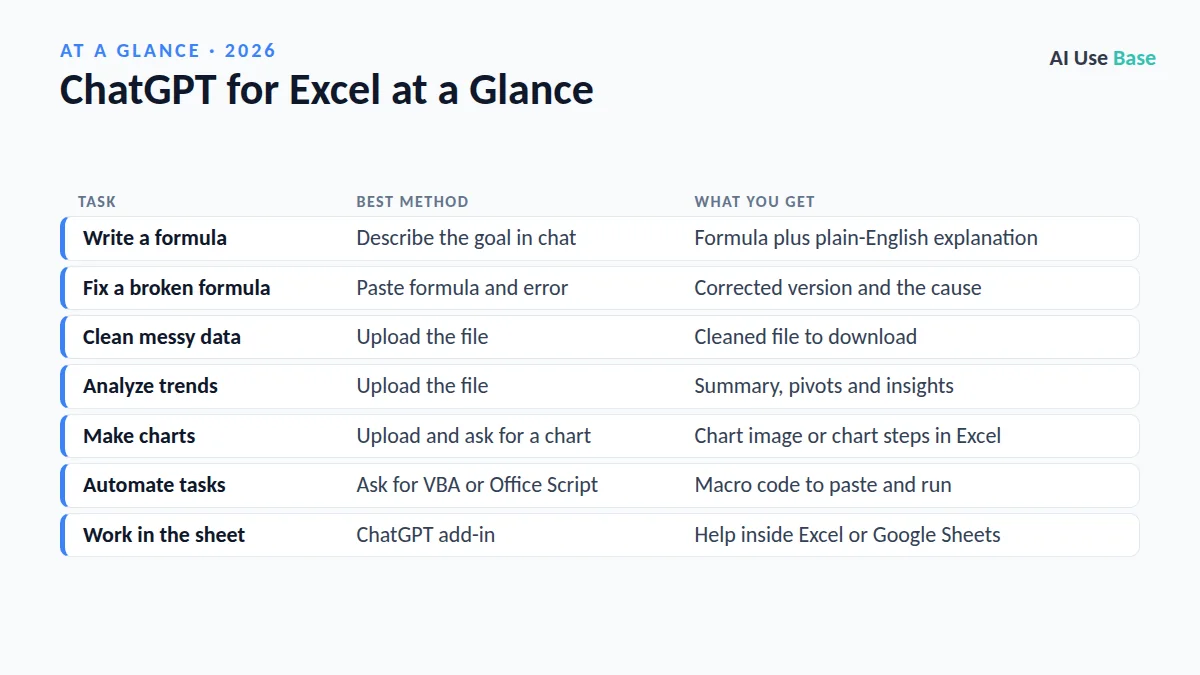
ChatGPT for Excel at a Glance
| Task | Best method | What you get |
|---|---|---|
| Write a formula | Describe the goal in chat | Formula plus plain-English explanation |
| Fix a broken formula | Paste formula and error | Corrected version and the cause |
| Clean messy data | Upload the file | Cleaned file to download |
| Analyze trends | Upload the file | Summary, pivots and insights |
| Make charts | Upload and ask for a chart | Chart image or chart steps in Excel |
| Automate tasks | Ask for VBA or Office Script | Macro code to paste and run |
| Work in the sheet | ChatGPT add-in | Help inside Excel or Google Sheets |
What Can ChatGPT Do in Excel?
Before you learn how to use ChatGPT for Excel, it helps to know what it does well. ChatGPT is a general AI assistant, but spreadsheets are one of its strongest use cases. It understands Excel functions such as XLOOKUP, SUMIFS, FILTER and LET, and it can explain them in plain language, which makes it a patient tutor for beginners.
When you upload a file, ChatGPT can run Python code behind the scenes to read your rows, calculate statistics and build charts. OpenAI explains supported files and limits in its file uploads FAQ. New to the chatbot itself? Start with our beginner guide to ChatGPT.
How to Use ChatGPT for Excel: Step by Step
- Sign in. Open chatgpt.com or the ChatGPT app and log in. A free account is enough to start.
- Describe your sheet. Tell ChatGPT your column names, what each column holds, and which row the data starts on.
- State the goal. Say exactly what you need, for example “total sales per region where status is Paid.”
- Upload if needed. For analysis or cleaning, click the plus or paperclip icon and attach your .xlsx or .csv file.
- Test the result. The golden rule of how to use ChatGPT for Excel is to verify. Paste the formula into one cell first, then check it against a few rows you can verify by hand.
- Iterate. If something is off, paste the error or wrong output and ask ChatGPT to fix it.
Key Features and How to Use Them
Formula writing and debugging
This is the fastest win and the simplest way to learn how to use ChatGPT for Excel. Describe the result you want and mention your Excel version, since newer functions like XLOOKUP and TEXTSPLIT are not available in older releases. Ask for an explanation of each part so you learn as you go.
Uploading spreadsheets for analysis
Uploading is how to use ChatGPT for Excel when you need answers, not just formulas. Upload a workbook and ask questions in plain English: “Which product had the biggest month-over-month drop?” ChatGPT reads the data, shows its working, and can give you back a cleaned or reshaped file. Always mention which sheet to use if the workbook has several tabs.
Charts and visual summaries
Ask for a bar, line or scatter chart, and ChatGPT generates it from your uploaded data. If you prefer a native Excel chart, ask for step-by-step instructions on which range to select and which chart type to insert.
VBA macros and Office Scripts
ChatGPT can write VBA for desktop Excel or Office Scripts for Excel on the web. Ask it to add comments to every line, and always test macros on a copy of your file because a macro cannot be undone with Ctrl+Z.
The ChatGPT add-in for Excel and Google Sheets
OpenAI introduced ChatGPT for Excel as an add-in, and it now also works with Google Sheets. It lets you ask ChatGPT for help without leaving your workbook. Availability and setup details are in OpenAI’s add-in help article.
Practical Uses With Example Prompts
Here are eight real tasks that show how to use ChatGPT for Excel day to day. Replace the bracketed parts with your own details.
| Use | Example prompt |
|---|---|
| Lookup formula | Write an XLOOKUP that finds the price in Sheet2 column C using the product ID in A2. Return "Not found" if missing. |
| Conditional totals | Sum column D where column B is "West" and column E is after 1/1/2026. |
| Formula debugging | This formula returns #N/A: [formula]. Explain why and fix it. |
| Data cleaning | Remove duplicate rows, trim extra spaces, and standardize dates to YYYY-MM-DD. Give me the cleaned file. |
| Split text | Column A has "Last, First". Give me a formula to split it into two columns. |
| Quick analysis | Summarize the top 5 customers by revenue and any unusual trends in this file. |
| Charting | Create a line chart of monthly revenue for 2025 vs 2026. |
| Macro | Write a commented VBA macro that saves each worksheet as a separate PDF. |
Teachers and students can use the same approach for gradebooks and survey results. For more ideas, see our list of AI productivity tools.
ChatGPT Plans and Pricing
You can learn how to use ChatGPT for Excel on the free plan, but uploads, advanced data analysis and the strongest models come with usage limits that paid plans raise. Exact prices vary by country and change often, so check the official ChatGPT pricing page before you subscribe.
| Plan | Who it suits | Excel-relevant notes |
|---|---|---|
| Free | Occasional formula help | Uploads and analysis with tighter limits |
| Go | Budget users | Low-cost tier with higher limits than Free |
| Plus | Regular spreadsheet work | More uploads, analysis and model access |
| Pro | Heavy daily use | Highest individual limits |
| Business / Enterprise | Teams and companies | Admin controls; data not used for training by default |
Tips for Using ChatGPT for Excel
A few habits make a big difference when you use ChatGPT for Excel every week. Anyone figuring out how to use ChatGPT for Excel at work should start with these.
- Share structure, not secrets. For formulas, ChatGPT only needs column headers and a few fake sample rows.
- Name your version. Say “Excel 365,” “Excel 2019” or “Google Sheets” so you get functions that actually work.
- Ask for a check. Add “show me how to verify this result” to every analysis prompt.
- Keep a prompt library. Save prompts that worked so your team can reuse them.
- Work on copies. Run macros and cleaning steps on a duplicate file first.
Limits and Privacy
Knowing how to use ChatGPT for Excel safely means knowing where it fails. ChatGPT can write a formula that looks right but references the wrong column or misses an edge case, such as blank cells or text stored as numbers. Treat every output as a draft and spot-check totals before they reach a report.
Very large or complex workbooks may be trimmed or only partly read, and formatting, pivot tables and external links may not survive a round trip. Upload a focused extract instead of a giant master file.
Privacy matters most. On personal plans, your chats may be used to improve models unless you turn that off in Data Controls. Do not upload customer lists, payroll or health data unless your company has approved a business plan. Our guide to AI tools for small business covers safer options for teams.
Frequently Asked Questions
Can ChatGPT read Excel files?
Yes. You can upload .xlsx and .csv files to ChatGPT and ask questions about the data. It can summarize, clean, reshape and chart the data, then give you a file to download. Limits on file size and number of uploads depend on your plan.
Is there a ChatGPT add-in for Excel?
Yes. OpenAI offers an official ChatGPT add-in for Excel that also works with Google Sheets. It lets you ask for formulas, analysis and edits without leaving your workbook. Check OpenAI’s help center for current availability on your plan.
Can ChatGPT write Excel formulas?
Yes, and this is the easiest way to start learning how to use ChatGPT for Excel. Describe your columns and the result you want, and ChatGPT returns a formula with an explanation. Always test it on a few rows before trusting it.
Is it safe to upload spreadsheets to ChatGPT?
It depends on the data. Avoid uploading personal, financial or confidential data on a personal plan, and turn off model training in Data Controls if you are concerned. Businesses should use a Business or Enterprise plan with admin controls.
Is ChatGPT free for Excel help?
The free plan can write formulas, explain functions and analyze small files, but it has tighter usage limits. Paid plans raise upload and analysis limits and give access to stronger models.
Final Thoughts
Once you know how to use ChatGPT for Excel, routine work like writing lookups, cleaning imports and drafting macros takes minutes instead of an hour. Start with formulas, move on to uploads and charts, and always verify the numbers yourself.
Want to see what else AI can do for your workflow? Browse our roundup of the best AI tools for more options.