
To learn how to use Claude, sign up for a free account at claude.ai, type a request in plain English, and refine the answer with follow-up messages. From there, you can upload files, organize work into Projects and let Claude build documents or small apps called Artifacts.
Claude is Anthropic’s AI assistant, and it is especially strong at writing, analysis and working with long documents. This beginner guide walks you through setup, the main features, ten practical uses with ready-to-copy prompts, and which plan makes sense for you.
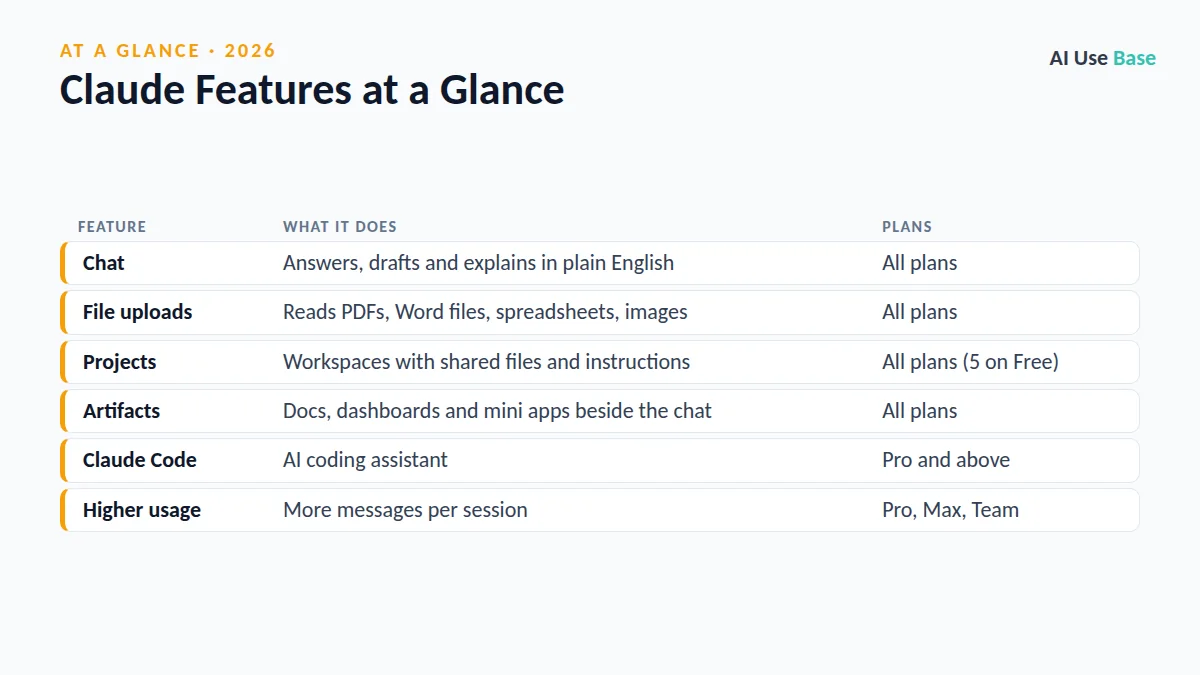
Claude at a Glance
| Feature | What it does | Plans |
|---|---|---|
| Chat | Answers, drafts and explains in plain English | All plans |
| File uploads | Reads PDFs, Word files, spreadsheets, images | All plans |
| Projects | Workspaces with shared files and instructions | All plans (5 on Free) |
| Artifacts | Docs, dashboards and mini apps beside the chat | All plans |
| Claude Code | AI coding assistant | Pro and above |
| Higher usage | More messages per session | Pro, Max, Team |
What Is Claude?
Claude is a family of AI models made by Anthropic, available through the claude.ai website, desktop apps and mobile apps for iOS and Android. The models come in three sizes: Haiku (fast and light), Sonnet (the balanced everyday model) and Opus (the most capable for complex work). At the time of writing, the current versions are numbered 5.5.
Which models you can choose depends on your plan, and Anthropic updates the lineup often. For most everyday tasks, the default model is a good starting point, so you do not need to worry about model names on day one.
How to Use Claude: Getting Started
- Create an account. Go to claude.ai or download the app and sign up with an email address or Google account.
- Start a new chat. Type your request in the message box. Be specific about the goal, audience and format you want.
- Add context. Click the paperclip or plus icon to attach files, or paste text directly into the message.
- Refine the answer. Reply with follow-ups such as “make it shorter” or “use a friendlier tone.” Claude remembers the conversation.
- Organize recurring work. Create a Project when you keep returning to the same topic, such as a class or a client.
Key Features: How to Use Claude’s Main Tools
File Uploads
Knowing how to use Claude with your own files is where it really shines. It reads PDF, DOCX, CSV, TXT, HTML, EPUB, JSON and XLSX files, plus JPEG, PNG, GIF and WebP images. According to Anthropic’s file upload guide, you can attach up to 20 files per chat, and files added to a Project are capped at 30MB each. Spreadsheets need the code execution and file creation setting turned on.
Projects
If you are figuring out how to use Claude for a class or a client, start here. Projects are self-contained workspaces with their own chat history and knowledge base. Upload your course notes, brand guide or reports once, add project instructions such as “answer as a friendly tutor,” and every chat inside the Project uses that context. Free accounts can create up to five Projects, while paid plans get expanded project knowledge.
Artifacts
When you ask for something substantial, such as a report, slide deck, dashboard or small interactive tool, Claude creates an Artifact that opens beside the conversation. You can edit it, return to it from the Artifacts tab and share it when ready. Artifacts work on every plan, but they require “Code execution and file creation” to be enabled in Settings.
10 Practical Ways to Use Claude (With Prompts)
The best way to understand how to use Claude is to try real tasks. Copy these prompts and replace the details in brackets.
- Summarize a long PDF:
Summarize this report in 5 bullet points, then list 3 questions I should ask the author. - Edit your writing:
Improve the clarity of this email without changing my voice. Show the edits you made. - Study help:
Explain [topic] like I'm a first-year student, then quiz me with 5 questions one at a time. - Analyze a spreadsheet:
Find the top 3 trends in this sales data and create a chart for each. - Plan a project:
Create a 4-week plan to launch [product], with weekly tasks and owners. - Draft marketing copy:
Write 3 headline options and a 100-word product description for [product] aimed at [audience]. - Build a quick tool:
Make an interactive budget calculator where I can enter income and expenses. - Prepare for a meeting:
Turn these notes into an agenda with time slots and decisions needed. - Learn to code:
Explain what this Python function does line by line, then suggest one improvement. - Brainstorm:
Give me 10 blog post ideas about [topic] for beginners, ranked by search interest.
If you also use other assistants, our ChatGPT vs Claude for writing comparison shows where each one shines.
Claude Plans and Pricing
Prices below come from Anthropic’s plan guide (prices last checked October 2026, US dollars).
| Plan | Price | Best for |
|---|---|---|
| Free | $0 | Light, occasional use |
| Pro | $20/month or $200/year | Regular personal use, includes Claude Code |
| Max 5x | $100/month | Frequent users, 5x Pro usage per session |
| Max 20x | $200/month | Daily heavy users, 20x Pro usage per session |
| Team and Enterprise | Per-seat pricing | Organizations with shared Projects and admin tools |
Usage limits reset every five hours, and paid plans also have a weekly limit. Pro adds priority access during busy periods and early access to new features. Developers who want the API pay separately through the Claude Console.
Tips on How to Use Claude More Effectively
- Give it a role and a goal. “You are a hiring manager. Review my resume for a marketing role” beats “check my resume.”
- Specify format and length. Ask for a table, bullet list or word count up front.
- Share examples. Paste a sample of the style you like and ask Claude to match it.
- Use Projects for repeat work. This saves you from re-uploading the same files every time.
- Ask it to check itself. A follow-up like “what might be wrong with this answer?” often catches mistakes.
Once you know how to use Claude well, it is worth comparing it with other assistants. Our ChatGPT beginner guide and our list of the best AI tools cover the wider landscape.
Limitations to Keep in Mind
Part of knowing how to use Claude responsibly is understanding where it falls short.
- It can be wrong. Claude may state incorrect facts confidently, so verify names, numbers and citations.
- Usage caps. Long files and long chats use up your allowance faster, especially on the Free plan.
- Privacy. Avoid uploading sensitive personal, financial or client data unless your organization’s plan allows it.
- Not a professional. Use it to prepare, not to replace medical, legal or financial advice.
If you use Claude for programming, see how it compares in ChatGPT vs Claude for coding.
Frequently Asked Questions
Is Claude free to use?
Yes. Claude has a Free plan that lets you chat, upload files, create up to five Projects and build Artifacts. Usage is limited and resets every five hours, so heavy users often upgrade to Pro for $20 per month.
How do I use Claude for the first time?
Go to claude.ai or download the app, sign up with your email or Google account, and type a request in the message box. Be specific about what you want, then refine the answer with follow-up messages. That is the simplest way to learn how to use Claude.
What can I upload to Claude?
When people ask how to use Claude with documents, uploads are the answer. Claude accepts PDF, Word, CSV, TXT, HTML, EPUB, JSON and Excel files, plus common image formats like JPEG and PNG. You can attach up to 20 files per chat.
What is the difference between Claude Pro and Max?
Pro costs $20 per month and suits regular use. Max costs $100 or $200 per month and gives five or twenty times the Pro usage per session, which suits people who rely on Claude for most of their daily work.
Is Claude better than ChatGPT?
Neither is better for everyone. Many people prefer Claude for long-form writing and document analysis, while ChatGPT offers a broader set of built-in tools. Trying both on your own tasks is the best way to decide.
Final Thoughts
Learning how to use Claude takes about ten minutes: sign up, ask a clear question, and build from there with files, Projects and Artifacts. The Free plan is enough to test whether it fits your writing, study or work routine.
If you find yourself hitting limits or wanting Claude Code, Pro is the natural next step. Start with one of the prompts above today and adjust it to your own work.
2 thoughts on “How to Use Claude: Complete Beginner’s Guide (2026)”