The fastest way to convert a Word document to PowerPoint with AI is to open PowerPoint, select Copilot, and ask it to create a presentation from your Word file. If you do not have Copilot, upload the file to Gamma (free starter credits) or ask ChatGPT or Claude to build a .pptx file. You usually get a structured deck with titles and speaker notes in 1 to 3 minutes, then you just polish the content and visuals.
Last updated: September 27, 2026.
4 Ways to Turn Word into Slides with AI: Quick Comparison
| Tool | Cost | Strengths | Limitations |
|---|---|---|---|
| Copilot in PowerPoint | Requires a Microsoft 365 plan with Copilot | Works inside PowerPoint, uses your company template | Not free; cannot add extra instructions in the same file-based prompt |
| Gamma | 400 one-time free credits; paid from $9/month | Best-looking slides, fastest, exports to PowerPoint | Free credits do not refresh |
| ChatGPT / Claude | Free plans available | Excellent summarizing, downloadable .pptx | Plain design that needs polishing |
| Canva | Free plan available | Huge template library, easy editing | You paste an outline rather than point it at the Word file |
Prices checked September 2026 and may vary by region.
Prepare Your Word Document First
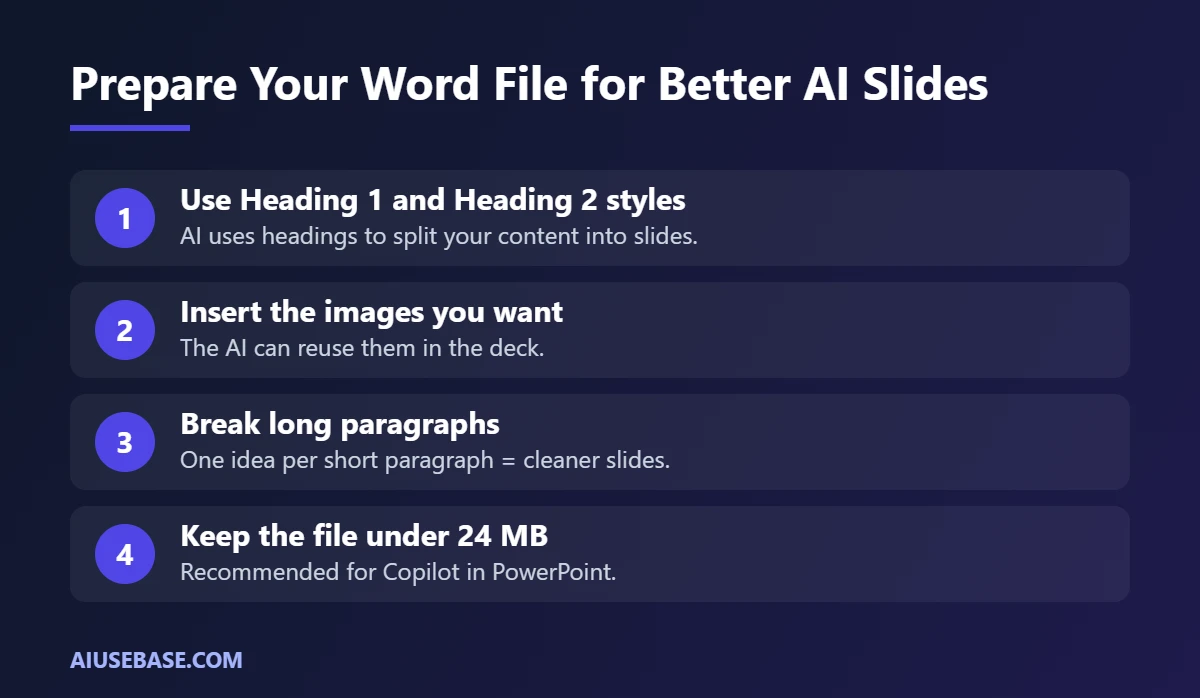
Whichever tool you use, a well-structured document produces a better deck:
- Use Heading 1 and Heading 2 styles for sections and subsections. AI uses them to split slides, and Microsoft recommends applying Styles so Copilot understands your structure.
- Insert the images you want directly in the document so the AI can reuse them.
- Break long paragraphs into one idea per short paragraph.
- Keep files under 24 MB for Copilot in PowerPoint.
Method 1: Copilot in PowerPoint
- Save your Word document to OneDrive or SharePoint.
- Open PowerPoint and create a new presentation (start from your company template if you have one).
- Select Copilot on the ribbon.
- Choose Create presentation from file, or type “/” to reference your Word file.
- Review the outline and slides Copilot generates, then adjust the design and text.
When you reference a file, you cannot add other instructions in the same prompt. Create the deck first, then ask Copilot for changes such as “add a summary slide” or “shorten the text on slide 3”. You need a Microsoft 365 Copilot license or a Microsoft 365 consumer plan that includes Copilot.
Method 2: Gamma (Free Credits)
- Go to gamma.app and sign up.
- Select Create new, then Import file or URL, and upload your document (export it to PDF first if the import fails).
- Choose the number of slides, language and text density.
- Pick a theme and generate.
- Edit in Gamma, then Export to PowerPoint or PDF.
Free accounts get 400 credits once. If you make decks often, you will need to upgrade or switch methods.
Method 3: ChatGPT or Claude
Both assistants read Word files well and can generate a downloadable PowerPoint file. Upload your document and use this prompt:
Read the attached document and create a 10-slide PowerPoint presentation for a leadership meeting. Slide 1 is the title, the last slide is conclusions and recommendations. Maximum 5 bullets per slide, each under 12 words. Add speaker notes for every slide. Export as .pptx.
If you only need the content to paste into your own template:
Turn the attached document into a 10-slide outline in a table: slide number, title, 3-5 key points, suggested visual.
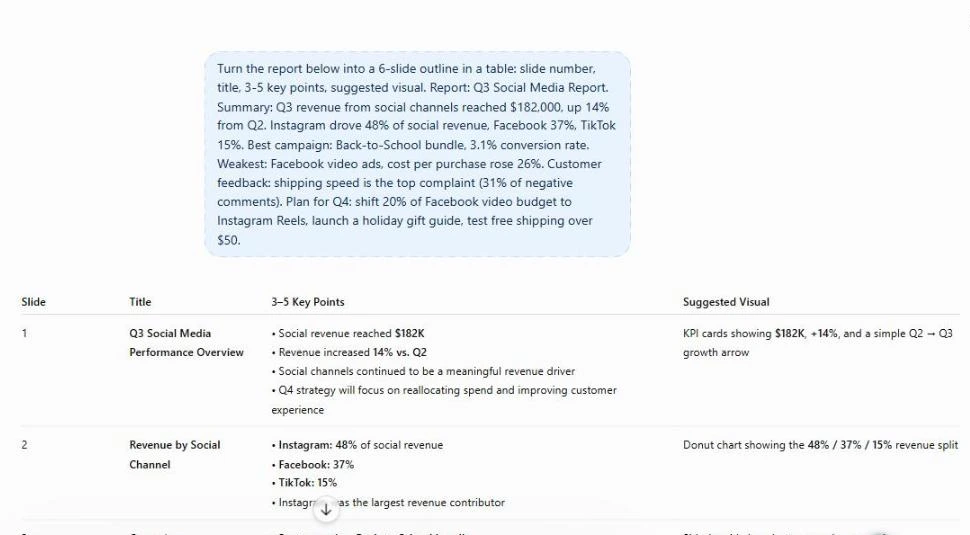
Slides from ChatGPT or Claude tend to have simple designs. Open the file in PowerPoint and use Designer to restyle it quickly.
Method 4: Canva
- Ask ChatGPT or Gemini to turn your Word document into a slide outline (use the second prompt above).
- In Canva, create a Presentation and use Canva AI or Magic Design with your outline.
- Pick a template and apply your brand colors and fonts.
- Download as PowerPoint or present directly from Canva.
Tips for Professional-Looking AI Slides
- One idea per slide. If the AI crams in text, ask it to “split slide 4 into 2 slides”.
- Check the numbers. AI summaries can round figures or misread tables.
- Replace generic images with your real photos and charts.
- Rehearse in your own words. AI speaker notes are a starting point.
Frequently Asked Questions
Is there a free AI tool to convert Word to PowerPoint?
Yes. Gamma gives you 400 free credits once, and the free plans of ChatGPT, Claude and Gemini can read Word files and draft slide outlines or .pptx files. Canva Free helps you design slides from that outline.
Is Copilot in PowerPoint free?
No. It requires a Microsoft 365 Copilot license for business or a Microsoft 365 consumer plan that includes Copilot with a monthly usage allowance.
Can AI convert a PDF to PowerPoint too?
Yes. Gamma, ChatGPT, Claude and Copilot can all read PDFs. Scanned PDFs may give weaker results; see our guide to AI PDF readers.
Can I use AI-generated slides for an important presentation?
Yes, after you check the content, replace visuals and fine-tune the layout. Treat AI slides as an 80% draft; the last 20% is yours.
Which is better, Gamma or Copilot?
Gamma usually produces more attractive slides from scratch, while Copilot fits better if you work inside PowerPoint and need your company template. Both export to .pptx.
Final Thoughts
Converting Word to PowerPoint with AI saves hours of layout work. If your company has Copilot, use it inside PowerPoint; otherwise Gamma gives the best-looking decks, and ChatGPT or Claude give the best summaries. Whatever you choose, a well-structured Word document is the most important step. For more tools by use case, see the best AI tools.
Looking for more step-by-step tutorials? Browse our AI Guides.
Related guides: you may also like our guides to best AI presentation makers.
2 thoughts on “How to Convert Word to PowerPoint with AI: 4 Fast Ways (Free Options)”