The quickest way to summarize YouTube video with AI is to paste the video link into Google Gemini and ask for a summary. You can also copy the transcript into ChatGPT or Claude, add the video as a source in Gemini Notebook (formerly NotebookLM), or use a browser extension that summarizes right on the YouTube page.
Each method suits a different job, from a quick recap of a podcast to detailed study notes from a lecture. Below you will find step-by-step instructions, prompts that get better summaries, and the limits to watch for.
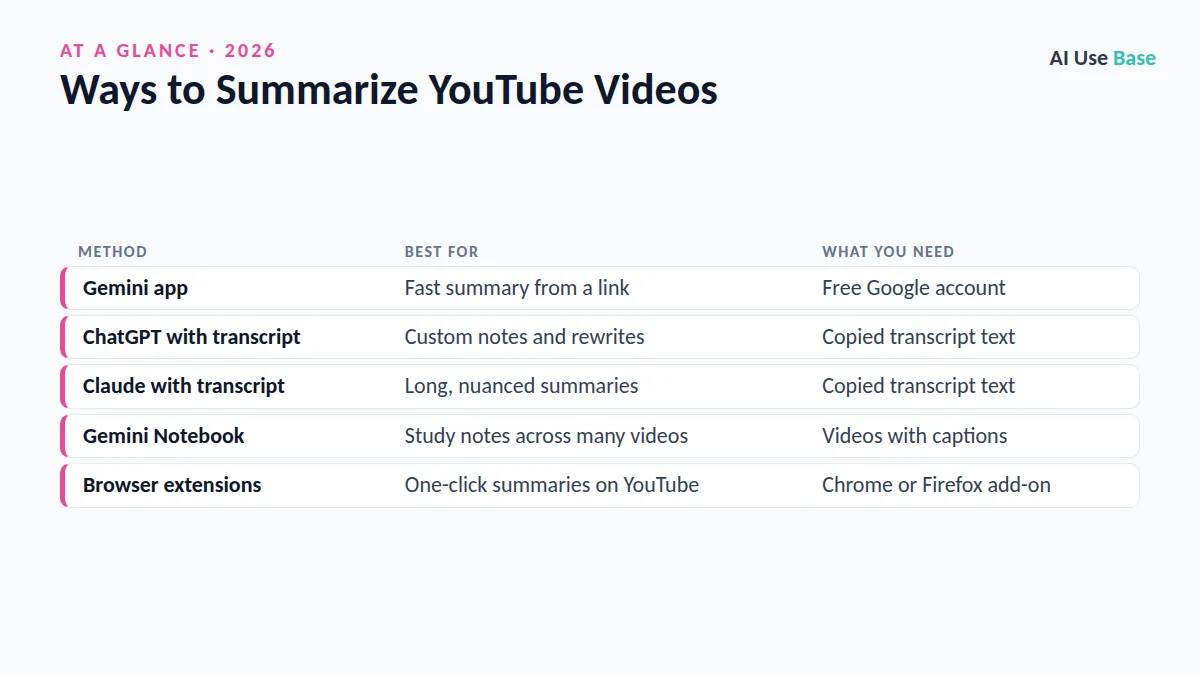
Ways to Summarize YouTube Video With AI at a Glance
| Method | Best for | What you need |
|---|---|---|
| Gemini app | Fast summary from a link | Free Google account |
| ChatGPT with transcript | Custom notes and rewrites | Copied transcript text |
| Claude with transcript | Long, nuanced summaries | Copied transcript text |
| Gemini Notebook | Study notes across many videos | Videos with captions |
| Browser extensions | One-click summaries on YouTube | Chrome or Firefox add-on |
Why Summarize YouTube Videos With AI?
Many useful videos run 30 minutes or more, and lectures, webinars and podcasts often run much longer. An AI summary lets you decide in a minute whether a video is worth watching, pull out the key steps from a tutorial, or turn a lecture into revision notes.
Most methods to summarize YouTube video with AI work from the video’s captions or transcript. That means the summary is only as good as the captions, and videos without captions may not work at all.
Method 1: Summarize YouTube Video With AI in Gemini
Google Gemini connects directly to YouTube, so it is the easiest option for most people. If you are new to it, our Gemini beginner guide covers the basics.
- Copy the link. On YouTube, click Share and copy the video URL.
- Open Gemini. Go to gemini.google.com or open the Gemini app and sign in with your Google account.
- Paste and ask. Type a prompt such as
Summarize this video in 5 bullet points: [link]. - Follow up. Ask for timestamps, key quotes, or a deeper explanation of one section.
Gemini works best with public videos that have captions. Private, age-restricted or very new videos may return an error, in which case use the transcript method below.
Method 2: Use ChatGPT or Claude With the Transcript
ChatGPT and Claude are excellent at rewriting and organizing text, so pasting the transcript gives you a lot of control over the result. This is the most reliable way to summarize YouTube video with AI when a link alone does not work.
- Open the transcript. On a desktop browser, expand the video description and click Show transcript.
- Copy the text. Select the whole transcript panel and copy it. You can toggle timestamps off first for cleaner text.
- Paste into the chatbot. Open ChatGPT or Claude and paste the transcript.
- Add your instructions. Tell the AI who the summary is for and what format you want.
Very long transcripts may exceed a free plan’s limits. If that happens, split the transcript into parts, summarize each, and then ask for a combined summary. For a side-by-side look at both assistants, see ChatGPT vs Gemini.
Method 3: Gemini Notebook (Formerly NotebookLM)
In July 2026, Google renamed NotebookLM to Gemini Notebook. It is still a research tool that answers only from the sources you add, with citations, which makes it ideal for summarizing several related videos at once.
- Create a notebook. Open Gemini Notebook and start a new notebook.
- Add YouTube sources. Choose to add a source, select YouTube, and paste one or more video links.
- Ask for a summary. Request a briefing, study guide or comparison of the videos.
- Use Studio tools. Turn the videos into an Audio Overview, mind map, flashcards or quiz.
If you need to summarize YouTube video with AI for a class, this is the method to pick. Students love it because citations link back to the exact part of the transcript. Explore more study helpers in our AI tools for students roundup.
Method 4: Browser Extensions
Many Chrome and Firefox extensions add a Summarize button beside YouTube videos, often powered by Gemini, ChatGPT or Claude. They save a few clicks if you summarize videos daily.
Extensions are the fastest way to summarize YouTube video with AI without leaving the page, but be selective. Extensions can request permission to read every page you visit, and some send data to third-party servers. Check reviews, the developer, and the permissions list before installing, and remove extensions you no longer use.
Practical Uses and Example Prompts
A good prompt is the difference between a vague recap and notes you can use. Here are eight practical ways to summarize YouTube video with AI.
- Quick decision:
In 3 sentences, what is this video about and who is it for? - Tutorial steps:
List every step shown in this tutorial as a numbered checklist. - Lecture notes:
Create study notes with headings, key terms and definitions. - Timestamps:
Give me a chapter list with timestamps and one-line descriptions. - Podcast takeaways:
What are the 5 most actionable ideas from this conversation? - Fact check:
List the factual claims made in this video so I can verify them. - Content repurposing:
Turn this video into a 300-word blog outline. - Quiz yourself:
Write 10 multiple-choice questions based on this lecture.
Plans and Pricing
You can summarize YouTube video with AI for free with every tool in this guide. Paid plans mainly raise usage limits, allow longer inputs, and unlock stronger models. Prices change often and vary by country, so check each official pricing page.
| Tool | Free option | Paid option |
|---|---|---|
| Gemini | Yes, with daily limits | Google AI plans raise limits |
| ChatGPT | Yes, with message limits | Go, Plus and Pro plans |
| Claude | Yes, with usage limits | Pro and Max plans |
| Gemini Notebook | Yes, with source limits | Higher limits on Google AI plans |
| Extensions | Often free tiers | Varies by developer |
Tips to Summarize YouTube Video With AI Better
- Say who it is for. “Explain for a beginner” produces a very different summary from “for a senior engineer.”
- Ask for structure. Request bullets, headings or tables instead of a single paragraph.
- Request timestamps. They let you jump to the part of the video you need.
- Check key facts. Watch the relevant section before quoting a number or claim.
- Batch related videos. Use Gemini Notebook when you need one summary across a playlist.
Limitations to Know
Before you summarize YouTube video with AI for work or school, know its weak spots. AI tools rely on captions, so auto-generated captions with errors can lead to wrong names, numbers or terms in the summary. Visual content, such as code on screen, charts or demonstrations without narration, is often missed.
AI can also smooth over nuance or present opinions as facts. For anything important, treat the summary as a map and the video as the source. Respect creators too: summarizing for personal study is fine, but republishing someone’s content as your own is not.
Frequently Asked Questions
Can Gemini summarize YouTube videos?
Yes. Paste a YouTube link into Gemini and ask for a summary, key points or timestamps. It works best with public videos that have captions. If a link fails, paste the transcript instead.
Can ChatGPT summarize a YouTube video?
Yes, and the most reliable way is to copy the video transcript from YouTube and paste it into ChatGPT with your instructions. This lets you choose the format, length and audience of the summary.
What is the best free way to summarize YouTube video with AI?
For most people, Gemini is the best free option because it can work from a YouTube link directly. Gemini Notebook is the best free choice for summarizing several videos for study, with citations to each source.
Is NotebookLM still available for YouTube summaries?
Yes, but Google renamed NotebookLM to Gemini Notebook in July 2026. You can still add YouTube videos with captions as sources and ask for summaries, study guides and Audio Overviews.
Why can’t AI summarize some YouTube videos?
Most tools need captions or a transcript. Private, age-restricted, very new or caption-free videos may fail. Try copying the transcript manually or choose another video.
Final Thoughts
To summarize YouTube video with AI, start with Gemini for speed, switch to ChatGPT or Claude with the transcript for control, and use Gemini Notebook when you are studying several videos at once. A clear prompt and a quick fact check will give you summaries you can trust.
Looking for more tools to speed up research and study? Browse our guide to the best AI tools.