To learn how to use NotebookLM, open notebooklm.google, create a notebook, add your sources (PDFs, Google Docs, websites or YouTube videos), and ask questions. Every answer is grounded in your sources and comes with citations, and the Studio panel turns the same material into Audio Overviews, mind maps, flashcards and reports.
One important update: in July 2026 Google renamed NotebookLM to Gemini Notebook. It is the same standalone tool at the same web address, and existing notebooks and links still work. This guide uses both names and covers setup, key features, limits and plans.
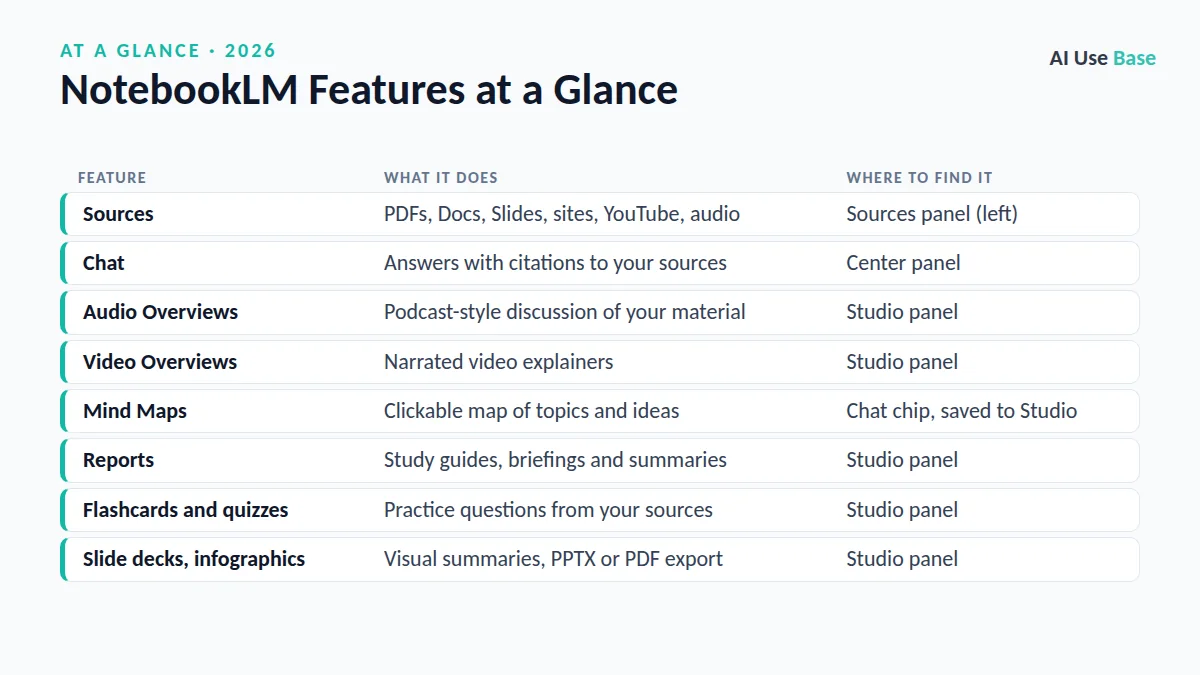
NotebookLM Features at a Glance
| Feature | What it does | Where to find it |
|---|---|---|
| Sources | PDFs, Docs, Slides, sites, YouTube, audio | Sources panel (left) |
| Chat | Answers with citations to your sources | Center panel |
| Audio Overviews | Podcast-style discussion of your material | Studio panel |
| Video Overviews | Narrated video explainers | Studio panel |
| Mind Maps | Clickable map of topics and ideas | Chat chip, saved to Studio |
| Reports | Study guides, briefings and summaries | Studio panel |
| Flashcards and quizzes | Practice questions from your sources | Studio panel |
| Slide decks, infographics | Visual summaries, PPTX or PDF export | Studio panel |
What Is NotebookLM (Gemini Notebook)?
NotebookLM is Google’s AI research and study assistant. Unlike a general chatbot, it works mainly from the documents you give it, which makes its answers easier to verify and less likely to drift into unrelated information.
Google announced the rename to Gemini Notebook on July 16, 2026. You can still use the standalone site, and you can now also open and create notebooks inside the Gemini app, with changes syncing between the two. If you already use Gemini, our Gemini beginner guide explains the rest of that app.
How to Use NotebookLM: Step by Step
- Sign in. Go to notebooklm.google with your Google account, or open the mobile app.
- Create a notebook. Click Create new notebook and give it a clear name, such as “Biology Unit 3.”
- Add sources. Upload files, paste text, or add a website or YouTube link. Keep each notebook focused on one topic.
- Ask questions. Type in the chat box. Click the numbered citations to jump to the exact passage in your source.
- Generate study outputs. Use the Studio panel to create an Audio Overview, report, mind map, flashcards or quiz.
- Save and share. Save useful answers as notes, and share the notebook privately or with a public link.
Key Features: How to Use NotebookLM’s Tools
Adding Sources
Knowing how to use NotebookLM starts with good sources. Supported sources include Google Docs, Sheets and Slides, Word, PowerPoint, PDF, text, Markdown, CSV and EPUB files, plus images, common audio formats, web pages and public YouTube videos with captions. Each source can hold up to 500,000 words or 200MB, according to Google’s sources help page. Web pages are imported as text only.
Chat With Citations
Chat is the core of how to use NotebookLM day to day. Ask anything about your material, from “What are the three main arguments?” to “Where do these two authors disagree?” Each claim links back to the source passage, so you can check context in one click. Chat history is saved automatically and stays private to you.
Audio and Video Overviews
Audio Overviews come in four formats: Deep Dive (two hosts, the default), The Brief (one speaker, under two minutes), The Critique and The Debate. You can pick a shorter or longer length, choose from more than 80 languages and add a custom prompt. In English, Interactive mode lets you join the conversation and ask the hosts questions by voice. Video Overviews turn your sources into narrated explainers, with a more animated Cinematic style available in English.
Mind Maps, Reports and Study Tools
Click the Mind Map chip in the chat to get a branching diagram of your topics; selecting a node asks the chat about that idea. Mind maps are not supported in the mobile app. Reports create study guides, briefing documents and summaries, while flashcards and quizzes track your progress across sessions.
8 Practical Ways to Use NotebookLM (With Prompts)
These examples show how to use NotebookLM for school and work. Adjust the details to your own sources.
- Exam prep:
Create a study guide with key terms, definitions and 10 likely exam questions. - Lecture review: Add a recorded lecture, then ask
List the 5 most important points and where each appears. - Literature review:
Compare the methods and findings of these papers in a table. - Commute learning: Generate an Audio Overview with the prompt
Explain this for a complete beginner. - Meeting prep:
Summarize these reports and list open questions for Thursday's meeting. - Policy questions: Upload a handbook and ask
How many vacation days do new employees get? - Lesson planning:
Turn this chapter into a 45-minute lesson with a quiz.Teachers can find more in our AI for teachers guide. - Content research:
Pull every statistic from these sources with its citation.
Limits and Plans
You can learn how to use NotebookLM entirely on the free plan. Google lists these usage limits, which may change. Prices are US monthly rates from Google’s subscriptions page (prices last checked October 2026).
| Plan | Price | Notebooks / sources per notebook |
|---|---|---|
| Free | $0 | 100 notebooks / 50 sources |
| Google AI Plus | $4.99/month | 200 notebooks / 100 sources |
| Google AI Pro | $19.99/month | 500 notebooks / 300 sources, 5x more Audio Overviews than Free |
| Google AI Ultra | From $99.99/month | 500 notebooks / 500 or more sources, highest limits |
Daily quotas reset every 24 hours. Paid plans also get early access to new tools, such as a secure cloud computer that lets a notebook run code for data analysis, which started on Ultra and is rolling out to Pro users. Workspace and Google Cloud business plans have their own versions.
Tips on How to Use NotebookLM Well
- One topic per notebook. Mixed sources lead to muddled answers.
- Use clean sources. Text-based PDFs work better than blurry scans.
- Customize outputs. Tell Audio Overviews your level, such as “for a high school student.”
- Check citations. Grounded answers can still misread a passage.
- Save good answers as notes. Notes keep your best findings in one place.
For other study helpers, see our lists of the best AI tools for students and the best AI tools overall.
Limitations
Even when you know how to use NotebookLM well, keep these limits in mind.
- Only as good as your sources. Outdated or biased documents produce outdated or biased answers.
- Feature gaps on mobile. Some tools, including mind maps, are web only.
- Language differences. Interactive Audio Overviews and some video styles are English only.
- Usage caps. Free users hit daily limits faster on Audio and Video Overviews.
Frequently Asked Questions
Is NotebookLM free?
Yes, and you can learn how to use NotebookLM without paying. The free plan includes up to 100 notebooks with 50 sources each, plus chat, Audio Overviews and other Studio tools with daily limits. Google AI Plus, Pro and Ultra plans raise those limits.
Is NotebookLM now called Gemini Notebook?
Yes. Google renamed NotebookLM to Gemini Notebook in July 2026. It remains a standalone tool at notebooklm.google, existing notebooks still work, and you can also access notebooks in the Gemini app.
How do I make an Audio Overview in NotebookLM?
Add your sources, open the Studio panel and choose Audio Overview. You can pick a format, length and language and add a prompt to focus the discussion before generating it.
What files can I upload to NotebookLM?
You can add PDFs, Google Docs, Sheets and Slides, Word and PowerPoint files, text, Markdown, CSV, EPUB, images, audio files, web pages and YouTube videos with captions. Each source can be up to 500,000 words or 200MB.
How do students use NotebookLM?
Students add lecture notes, readings and slides, then ask questions with citations, create study guides, flashcards and quizzes, and listen to Audio Overviews. Learning how to use NotebookLM this way turns a pile of readings into an organized study kit.
Final Thoughts
Learning how to use NotebookLM is mostly about choosing good sources: add them, ask questions, and let the Studio panel turn them into study material. The new Gemini Notebook name has not changed how it works.
The Free plan is generous enough for most students and professionals. Upgrade to Google AI Pro only if you regularly hit source or Audio Overview limits.