To learn how to use Gamma AI, sign up at gamma.app, choose whether to create a presentation, document, website or social post, then type a prompt or paste your notes. Gamma drafts an outline, builds designed slides or pages in about a minute, and lets you edit everything with AI or by hand before sharing a link or exporting to PowerPoint, Google Slides or PDF.
This guide on how to use Gamma AI covers getting started, the features worth knowing, practical uses with example prompts, how credits work on free and paid plans, and tips to get a polished result faster.
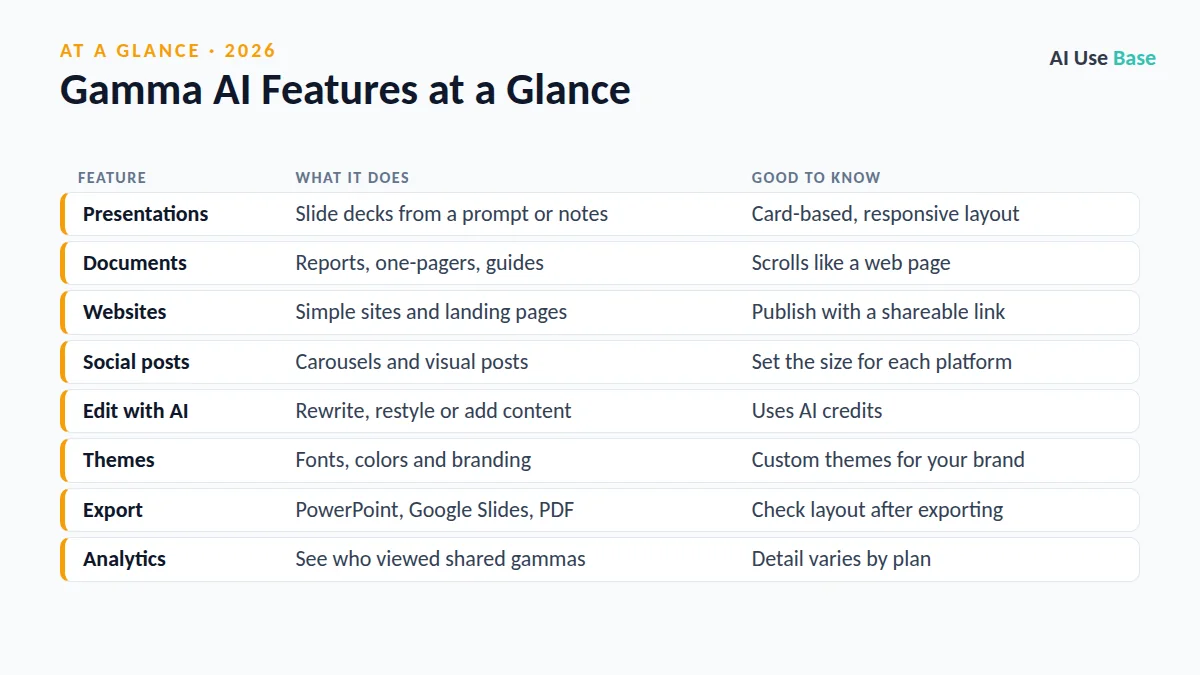
Gamma AI at a Glance
| Feature | What it does | Good to know |
|---|---|---|
| Presentations | Slide decks from a prompt or notes | Card-based, responsive layout |
| Documents | Reports, one-pagers, guides | Scrolls like a web page |
| Websites | Simple sites and landing pages | Publish with a shareable link |
| Social posts | Carousels and visual posts | Set the size for each platform |
| Edit with AI | Rewrite, restyle or add content | Uses AI credits |
| Themes | Fonts, colors and branding | Custom themes for your brand |
| Export | PowerPoint, Google Slides, PDF | Check layout after exporting |
| Analytics | See who viewed shared gammas | Detail varies by plan |
What Is Gamma AI?
Gamma is an AI design tool for visual content. Instead of starting from a blank slide, you describe what you need and Gamma writes the text, picks a layout, adds images and applies a theme.
Each slide or page is a flexible “card” that can expand to fit content, which makes gammas feel more like interactive web pages than classic slides. You can present them live, share them as a link, or export them to traditional formats. For other options, see our list of the best AI tools.
How to Use Gamma AI: Step by Step
- Create an account. Sign up free at gamma.app with Google or an email address.
- Click Create new. Choose Generate (from a prompt), Paste in text (from notes or a document), or Import a file or URL.
- Pick a format. Select Presentation, Document, Webpage or Social, and set the number of cards.
- Write your prompt. Include topic, audience, goal and tone, for example “10-slide pitch for a bakery loan, friendly and data-driven.”
- Review the outline. Gamma shows an outline first. Reorder, delete or rewrite points before generating, since fixing the outline is cheaper than fixing slides.
- Choose a theme and images. Pick a theme and an image source, such as AI-generated images or stock photos.
- Generate and edit. Click Generate, then refine with Edit with AI or edit cards directly.
- Share or export. Click Share for a link or Present to present, or export to PowerPoint, Google Slides, PDF or images.
Key Features and How to Use Them
Presentations
Presentations are what most people mean when they ask how to use Gamma AI. Give Gamma a clear structure in your prompt, such as “problem, solution, pricing, next steps,” and it follows it closely. Use the card layout options to switch between text-heavy and visual slides.
Documents
Knowing how to use Gamma AI for documents is just as useful. Gamma documents are good for proposals, reports and handouts. Paste a long draft and ask Gamma to “condense into a 5-section one-pager with key stats as callouts.” Documents are easy to read on phones because they scroll instead of paging.
Websites
Many people asking how to use Gamma AI simply want a quick website. Gamma Sites turns a prompt into a simple web page, such as a portfolio, event page or product landing page. You can publish it with a Gamma link, and paid plans add options like custom domains. It is best for simple sites, not online stores or complex web apps.
Edit with AI
Editing is where learning how to use Gamma AI really pays off. Select a card or the whole gamma and type an instruction like “make this more concise,” “turn these bullets into a timeline,” or “translate into Spanish.” Each AI edit uses credits, so batch your changes into one clear request.
Export to PowerPoint and Google Slides
Open the menu and choose Export. Gamma’s export help article lists the current formats. Exported slides are editable, but fonts, spacing and animations may shift, so review every slide before presenting. If your starting point is a Word file, our guide to converting Word to PowerPoint with AI compares other tools.
Practical Uses With Example Prompts
Here are eight common tasks that show how to use Gamma AI in real work and study.
- Pitch deck:
Create a 10-slide investor pitch for [startup] covering problem, solution, market, traction, team and the ask. - Class lesson:
Make a 12-slide lesson on photosynthesis for 8th graders with a quiz slide at the end. - Sales proposal:
Turn these meeting notes into a client proposal document with scope, timeline and pricing. - Training deck:
Create an onboarding presentation for new support staff, 8 slides, friendly tone. - Portfolio site:
Build a one-page portfolio website for a freelance photographer with services and contact sections. - Event page:
Create a landing page for a community 5K run with date, route, FAQ and sign-up info. - Report summary:
Summarize this quarterly report into 6 slides with one chart idea per slide. - Social carousel:
Make a 7-card LinkedIn carousel on 5 time-management tips.
Teachers will find more classroom ideas in our AI for teachers guide.
Gamma Plans, Credits and Pricing
Gamma uses AI credits. Generating a new gamma, editing with AI and creating AI images all consume credits, and bigger jobs use more. The free plan includes a starting allowance of credits so you can learn how to use Gamma AI before paying, while paid plans add more credits, better AI models and extra features.
Gamma’s paid tiers are called Plus, Pro and Ultra, plus team options. Prices, credit amounts and features change regularly, so check the official Gamma pricing page for current numbers.
| Plan | Best for | What it adds |
|---|---|---|
| Free | Trying Gamma | Starter credits, core formats, Gamma branding |
| Plus | Occasional creators | More credits, fewer limits on branding and exports |
| Pro | Frequent users and freelancers | More credits, advanced AI, custom domains and analytics |
| Ultra | Power users | Largest credit allowance and newest models |
Tips: How to Use Gamma AI Like a Pro
- Start from your content. Paste your own notes for accurate, specific decks instead of generic filler.
- Edit the outline first. It saves credits and keeps the story tight.
- Set a theme early. Create a brand theme once and reuse it for every gamma.
- Limit text per card. Ask for “max 3 bullets per slide” for cleaner presentations.
- Replace generic images. Swap AI images for real photos of your product or team where it matters.
- Check facts and numbers. Gamma writes confidently, even when it guesses.
Limitations
Part of learning how to use Gamma AI well is knowing its limits. Gamma is fast, but its designs can look similar if you always use default themes. Exports to PowerPoint and Google Slides are good, not perfect, and complex layouts may need cleanup. AI-written content can include outdated or invented facts, so verify stats before presenting.
Credits can also run out quickly if you regenerate many times. If you want to know how to use Gamma AI on a budget, plan your prompt, edit the outline, and use manual edits for small fixes. Avoid uploading confidential documents unless your organization has approved Gamma.
Frequently Asked Questions
Is Gamma AI free?
Yes. Gamma has a free plan with a starting allowance of AI credits, so you can create and share presentations, documents and websites. Paid plans called Plus, Pro and Ultra add more credits and features such as removing Gamma branding.
Can I export Gamma to PowerPoint?
Yes. Open the menu, choose Export, and select PowerPoint. You can also export to Google Slides, PDF and images. Review the exported file, as fonts, spacing and some layouts may change.
How do Gamma credits work?
Gamma uses credits for AI actions such as generating a new gamma, editing with AI and creating images. Larger or more complex requests use more credits. Paid plans include a larger credit allowance.
Is Gamma better than PowerPoint?
Gamma is faster for creating a designed first draft from a prompt or notes, while PowerPoint offers more precise control and offline editing. Many people draft in Gamma and finish in PowerPoint.
How do I use Gamma AI to make a website?
Click Create new, choose Webpage, describe the site you want, and generate. Edit the cards, then publish with a shareable link. Paid plans add options such as custom domains.
Final Thoughts
Once you know how to use Gamma AI, a first draft of a deck, document or simple website takes minutes, leaving you time to polish the story and check the facts. Start on the free plan, learn the outline-first workflow, and upgrade only if you run short of credits.
For more ways to work faster, explore our picks for the best AI productivity tools.