You can summarize a PDF with ChatGPT in under a minute: upload the file, tell ChatGPT who the summary is for and how long it should be, then check the key points against the original. The free plan can do this too, with tighter limits on uploads.
This guide shows the exact steps, the prompts that give the most useful summaries, and how to deal with long reports, scanned pages and confidential documents.
Quick Answer: What You Need
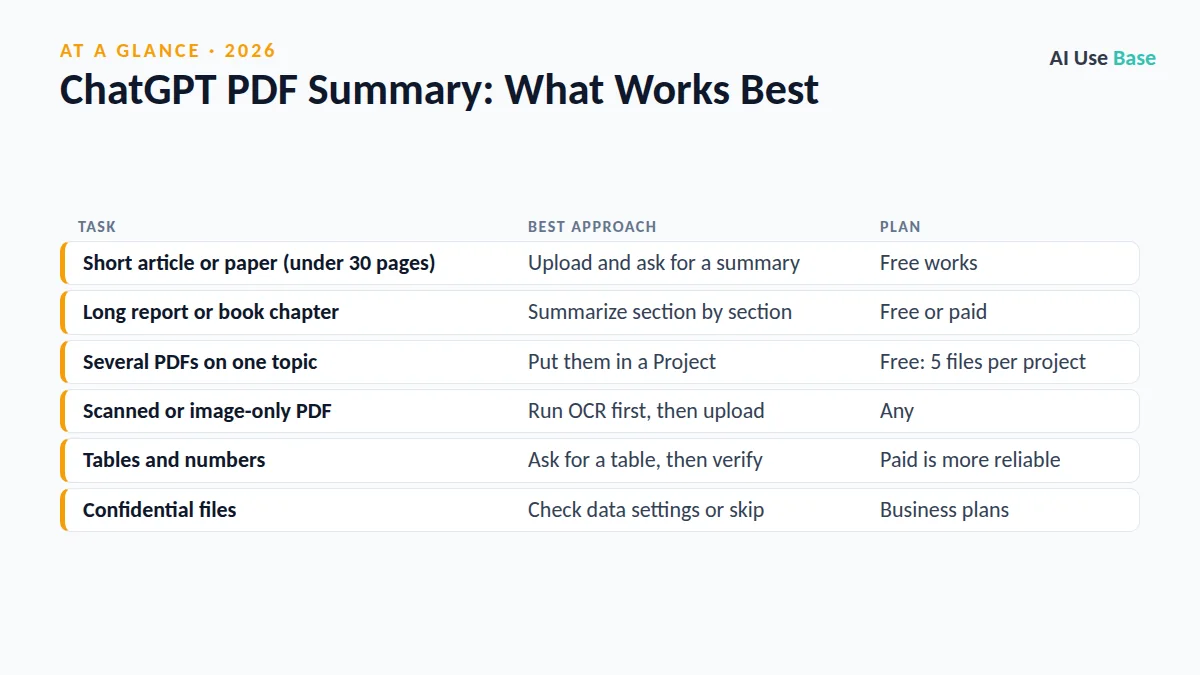
| Task | Best approach | Plan |
|---|---|---|
| Short article or paper (under 30 pages) | Upload and ask for a summary | Free works |
| Long report or book chapter | Summarize section by section | Free or paid |
| Several PDFs on one topic | Put them in a Project | Free: 5 files per project |
| Scanned or image-only PDF | Run OCR first, then upload | Any |
| Tables and numbers | Ask for a table, then verify | Paid is more reliable |
| Confidential files | Check data settings or skip | Business plans |
How to Summarize a PDF with ChatGPT in 5 Steps
- Open a new chat. Go to chatgpt.com or open the app and sign in. Starting fresh keeps old conversations from mixing into the summary.
- Upload the PDF. Click the + button next to the message box and choose your file, or drag the PDF into the chat window.
- Give a specific prompt. Say who the summary is for, how long it should be and what format you want. For example: “Summarize this PDF for a busy manager in 7 bullet points, then list 3 decisions it asks for.”
- Ask follow-up questions. Ask about a section, a definition or a number. Add “quote the sentence and give the page number” so you can check it.
- Verify before you use it. Open the PDF and check every number, name and date that matters. AI summaries can miss caveats or merge two ideas into one.
OpenAI explains file types and size limits in its file uploads FAQ. If a large file fails, split it into parts and upload them one at a time.
10 Prompts to Summarize a PDF with ChatGPT
The prompt makes a bigger difference than the plan. Copy these and replace the parts in brackets.
- “Summarize this PDF in 5 bullet points for [audience]. Keep each bullet under 20 words.”
- “Give me a one-paragraph executive summary, then the 3 most important numbers with page references.”
- “Create a table with columns Section, Main point, Why it matters.”
- “Explain this paper to a first-year student. Define any technical term the first time you use it.”
- “List every action item, deadline and owner mentioned in this document.”
- “What are the main arguments, and what evidence supports each one? Note any weak evidence.”
- “Summarize only pages [x] to [y].”
- “Compare this PDF with the previous one I uploaded. What changed?”
- “Turn this report into 10 flashcards with a question on the front and the answer on the back.”
- “What does this document NOT say that a reader might assume? List open questions.”
Want more ready-made prompts? Our guide on how to use ChatGPT covers prompt basics, and many of the same ideas work in Gemini and Claude.
How to Handle Long PDFs
Long documents are where summaries most often go wrong when you summarize a PDF with ChatGPT. ChatGPT can read large files, but a single prompt like “summarize this 200-page report” usually produces something vague.
Summarize in sections
Ask for the table of contents first: “List the sections of this PDF with page ranges.” Then summarize each section separately and finish with “Combine the section summaries into one 300-word overview.” This keeps detail from getting lost.
Use a Project for several files
If you are working with a set of papers or contracts, create a Project in the sidebar and add the PDFs there. Every chat in that Project can use the files and instructions. According to the ChatGPT Projects help page, Free users can add up to 5 files per project and Plus users up to 25.
Scanned PDFs, Tables and Charts
Before you summarize a PDF with ChatGPT, check whether it is a scan. If a PDF is a scan or a photo of paper, the text may not be readable as text. Try selecting text in your PDF reader: if you cannot highlight words, run OCR first. Many PDF readers, including Adobe Acrobat, have a text recognition tool, and Google Drive can convert a scanned PDF into an editable Google Doc.
For tables and charts, ask ChatGPT to rebuild the table in the chat and then compare it with the original. Numbers are the part most worth double-checking.
Privacy: What to Check Before Uploading
- Data controls: In Settings, you can choose whether your chats are used to improve OpenAI models. Review this before uploading work documents.
- Temporary Chat: Use it when you do not want the conversation saved to your history.
- Company rules: Before you summarize a PDF with ChatGPT at work, remember that many employers do not allow uploading client or internal files to personal AI accounts. Ask first.
- Remove sensitive data: Delete names, account numbers and personal details before uploading when you can.
OpenAI describes these options in its data controls FAQ.
Other Ways to Summarize a PDF
ChatGPT is not the only option. Some tools are built specifically for reading PDFs and show the exact passage behind each answer, which makes checking easier. Compare them in our guide to the best AI PDF readers. For research papers, our list of AI research tools includes options that link answers to sources, and you can find more options in our best AI tools guide.
Frequently Asked Questions
Can I summarize a PDF with ChatGPT for free?
Yes. Free users can upload PDFs and ask for summaries, but there are lower limits on uploads and messages. If you hit a limit, wait for it to reset or split the work across days.
Why does ChatGPT say it cannot read my PDF?
The file is often a scan with no real text, password-protected or too large. Run OCR, remove the password or split the file into smaller parts, then upload it again.
How accurate is a ChatGPT PDF summary?
When you summarize a PDF with ChatGPT, it is usually good at main ideas but can miss caveats, mix up numbers or invent details. Ask for page references and check every important figure in the original document.
Can ChatGPT summarize several PDFs at once?
Yes. Upload several files in one chat or add them to a Project. Ask for a summary of each file first, then a combined comparison.
Is it safe to upload confidential PDFs to ChatGPT?
Only if your data settings and your organization allow it. Business and Enterprise plans have stronger data protections. For sensitive files, remove personal details or use an approved tool.
Final Thoughts
The quickest way to summarize a PDF with ChatGPT is to upload the file, ask a specific question and check the answer against the original. Split long documents into sections, run OCR on scans, and keep sensitive files out unless your settings and employer allow it.
Used this way, ChatGPT can turn an hour of reading into a few minutes of review, while you stay responsible for the facts.